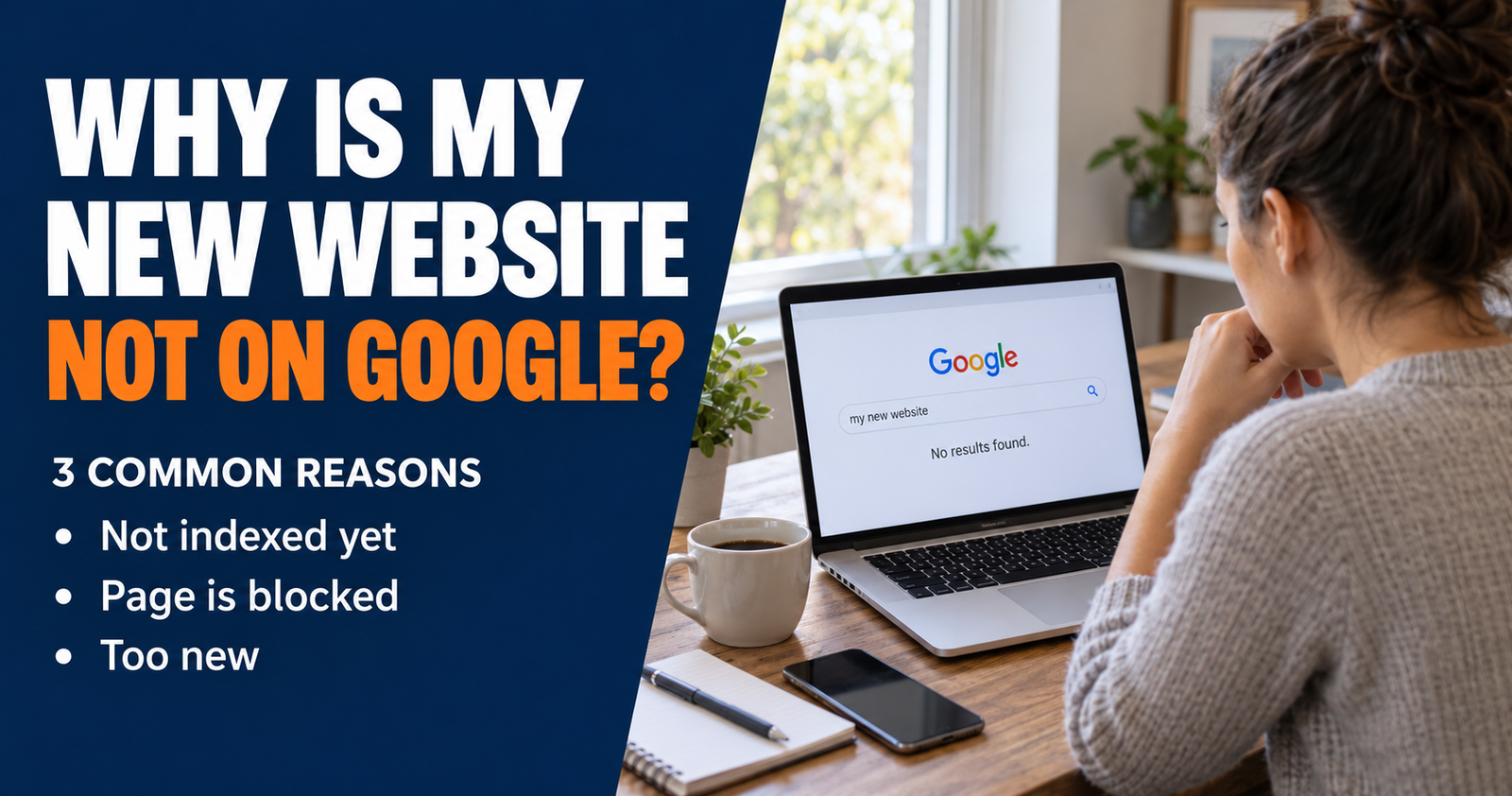
A new website can be live, look great, and still feel invisible on Google. You search your business name, your page title, or the exact words you wrote, and there is nothing there. That is enough to make anybody wonder whether they missed some big step. The broader getting found online section can help you find related guidance for the next steps.
Usually, there are only two possibilities. Google has not found or indexed the website yet, or Google has found it but has not chosen to show it for the search you tried.
Those are different problems. The good news is that you can check which one you have instead of guessing.
First, Do Not Confuse “Not Ranking” With “Not on Google”
Before changing anything, get clear about what is actually happening.
A site that is not indexed is not in Google’s database yet, at least not in a way that allows it to appear normally in search results.
A site that is indexed but not ranking is known to Google, but it is not showing prominently for the searches you want.
That distinction saves a lot of wasted effort.
If your site is brand new, it may simply need time. Google has to find the pages, crawl them, analyze them, and decide how they fit into search results. That can take days or weeks for crawling, while building meaningful visibility often takes much longer. For related beginner concerns, see these common questions about getting found before assuming something is wrong.

The timeline article on how long SEO takes for a new website explains that bigger picture. This article is for the more immediate question: is there a real indexing problem, or are you expecting Google to move faster than it normally does?
Check Whether Google Has Indexed Your Website
The fastest dependable place to check is Google Search Console.
Search Console is a free Google tool that lets website owners see what Google knows about a page. Open the URL Inspection tool, paste in the exact page address, and look at the result.
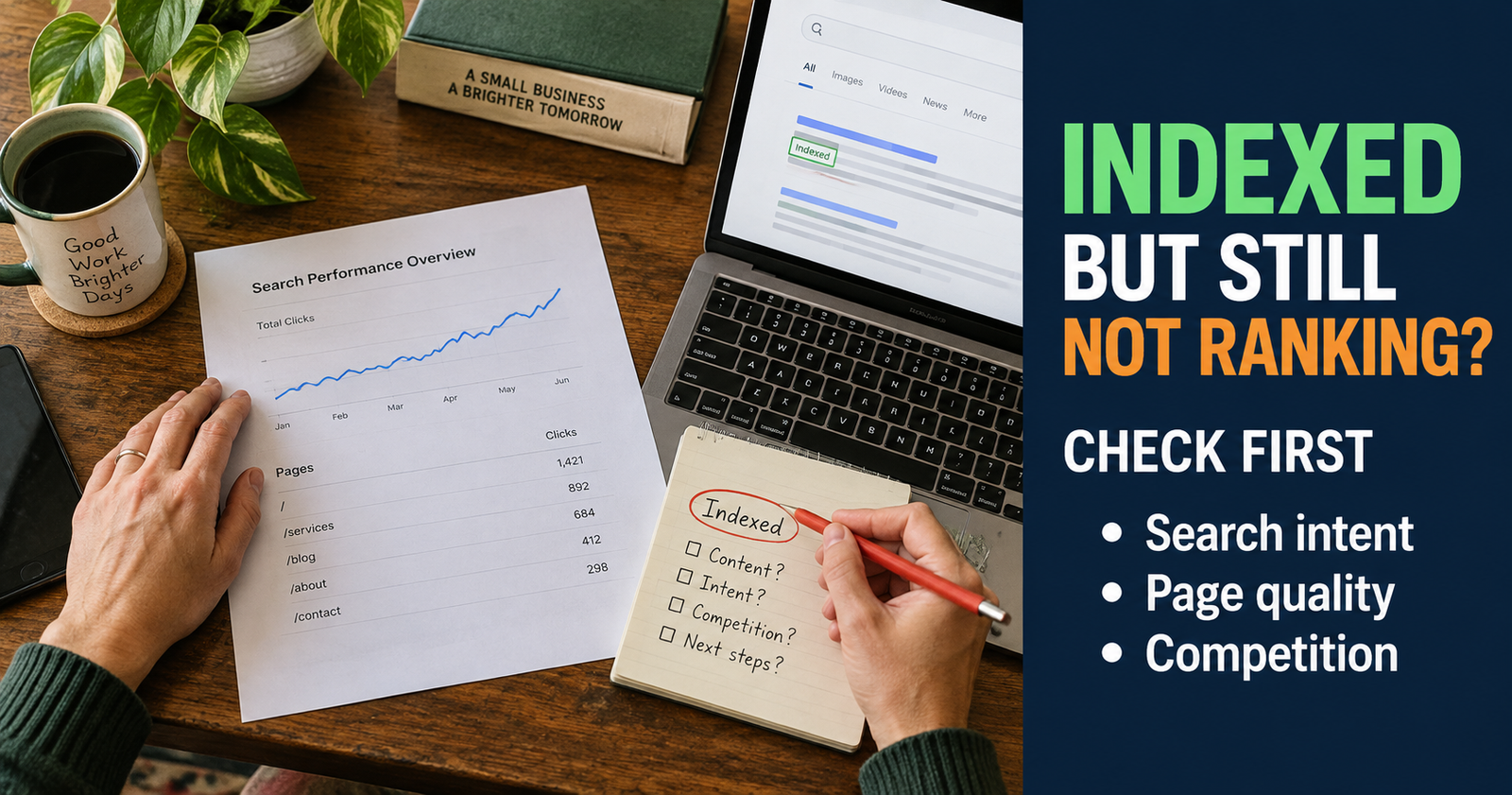
If Search Console says “URL is on Google,” the page is indexed. At that point, your problem is probably not discovery. It is more likely about rankings, search intent, competition, or the page needing time to earn visibility. For the next diagnostic steps, rankings and search intent focuses on what to check when Google has indexed the page but visibility remains low.
If it says the page is not on Google, read the reason shown in the report before you start changing settings. The report may identify a clear problem, such as a noindex directive, a redirect issue, a crawl problem, or a page Google has not discovered yet.
The URL Inspection tool is useful because it can show Google’s indexed version of the page and test the live version. It is much more helpful than running random Google searches and hoping to spot your own site.
A Google Search Can Still Be a Helpful Clue
You can also search Google for:
site:yourdomain.com
Replace “yourdomain.com” with your actual domain name.
If you see pages listed, Google has indexed at least part of your website. If you see nothing, it does not prove there is a problem, especially on a new site, but it gives you a reason to check Search Console.
Do not search only for the phrase you want to rank for. A brand-new website may be indexed and still be far too low in the results for you to find it by casually scrolling.
Searching your company name, site name, or an exact page title can be more useful than searching a broad, competitive keyword.
Make Sure the Site Is Actually Public
This sounds obvious, but it is one of the most common new-site problems.
A website can look live to you while being blocked from search engines. Some WordPress setups have a setting that discourages search engines from indexing the site during development. Other sites may still have password protection, a maintenance mode, a coming-soon page, or a privacy setting left over from launch.
Open the website in a private browser window or on your phone without logging in. Can a normal visitor reach it without a password? Can they open important pages, posts, and menus?
If the answer is no, Google may not be able to reach the site either.
This is a good moment to check more than the homepage. Sometimes the homepage is public, but individual articles, category pages, or service pages are accidentally hidden.

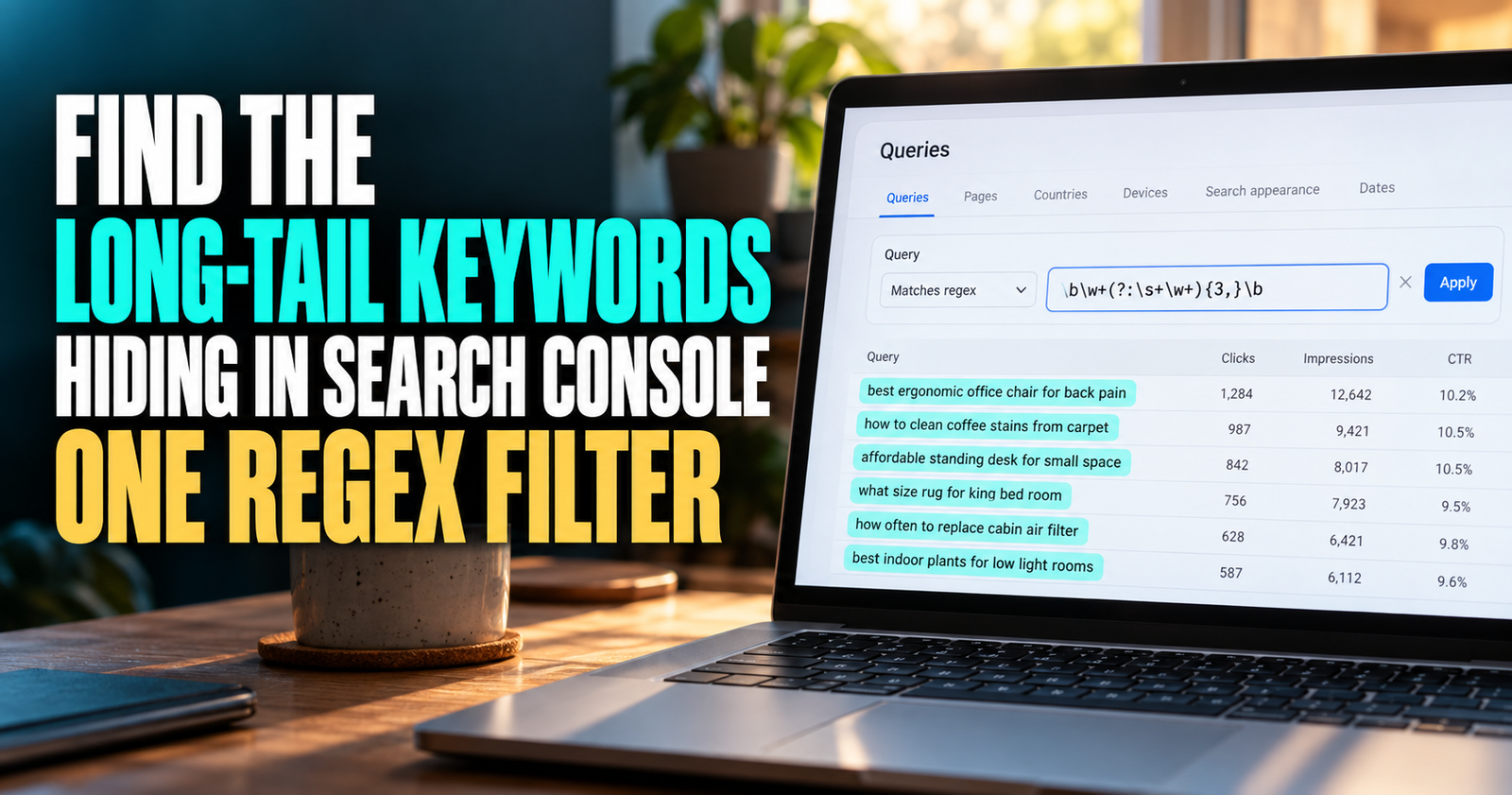

Check for a Noindex Setting
A noindex directive tells Google not to include a page in its search results. It is useful for private pages, thank-you pages, duplicate pages, and content you do not want people finding through search.
It is not useful on the pages you want to rank.
Many website builders and SEO plugins let you control indexing without touching code. That is helpful, but it also means someone can accidentally set a page to noindex with one click.
If Search Console reports that a page is excluded by a noindex tag, check the page settings in your website builder or SEO plugin. Look for wording like “allow search engines to show this page,” “index,” “search visibility,” or “noindex.”
Google’s official noindex guidance explains that a noindex rule prevents a page from appearing in Google Search once Google sees it.
Fix the setting, confirm that the page is public, then use URL Inspection to test the live URL again.
Do Not Treat Robots.txt Like a Magic Indexing Switch
Robots.txt is a small file that gives crawlers directions about which parts of a site they can request. It has a purpose, but it is often misunderstood.
A robots.txt file is not supposed to be a way to hide pages from Google Search. It is mainly used to manage crawler access.
For a newer site, the biggest concern is making sure an important part of the site was not accidentally blocked. If your site builder created the file automatically, it may be completely fine. Do not start editing it just because you read that robots.txt exists.
Only investigate it if Search Console points to a crawl-blocking issue or you know a setting was changed.
A common mistake is trying to use robots.txt to solve an indexing issue without understanding what it does. That can make it harder for Google to crawl the very page you want indexed.
Give Google a Clear Path to Your New Pages

Google finds many pages through normal links while crawling the web. On a small new site, though, it helps to make the paths obvious. For WordPress sites that need help surfacing related pages, make the paths obvious may support clearer paths between connected content.
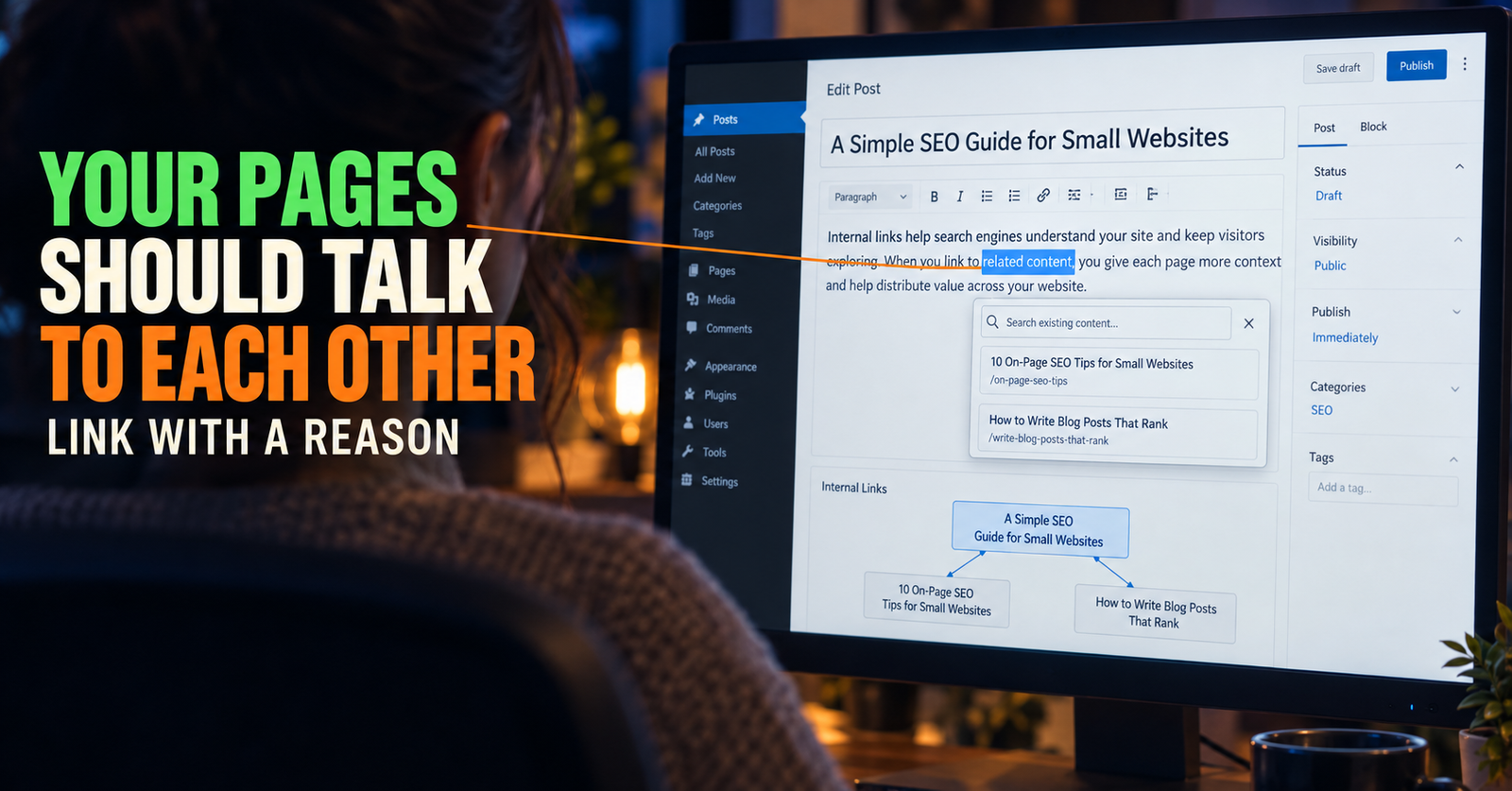
Your homepage should link to your important main pages. Your menu should lead somewhere useful. Blog posts should connect to related posts. Categories should make sense for readers, not just exist as empty labels.
Think about what happens if someone lands on your homepage for the first time. Can they reach your best pages in a few clicks? Can they understand what the site is about?
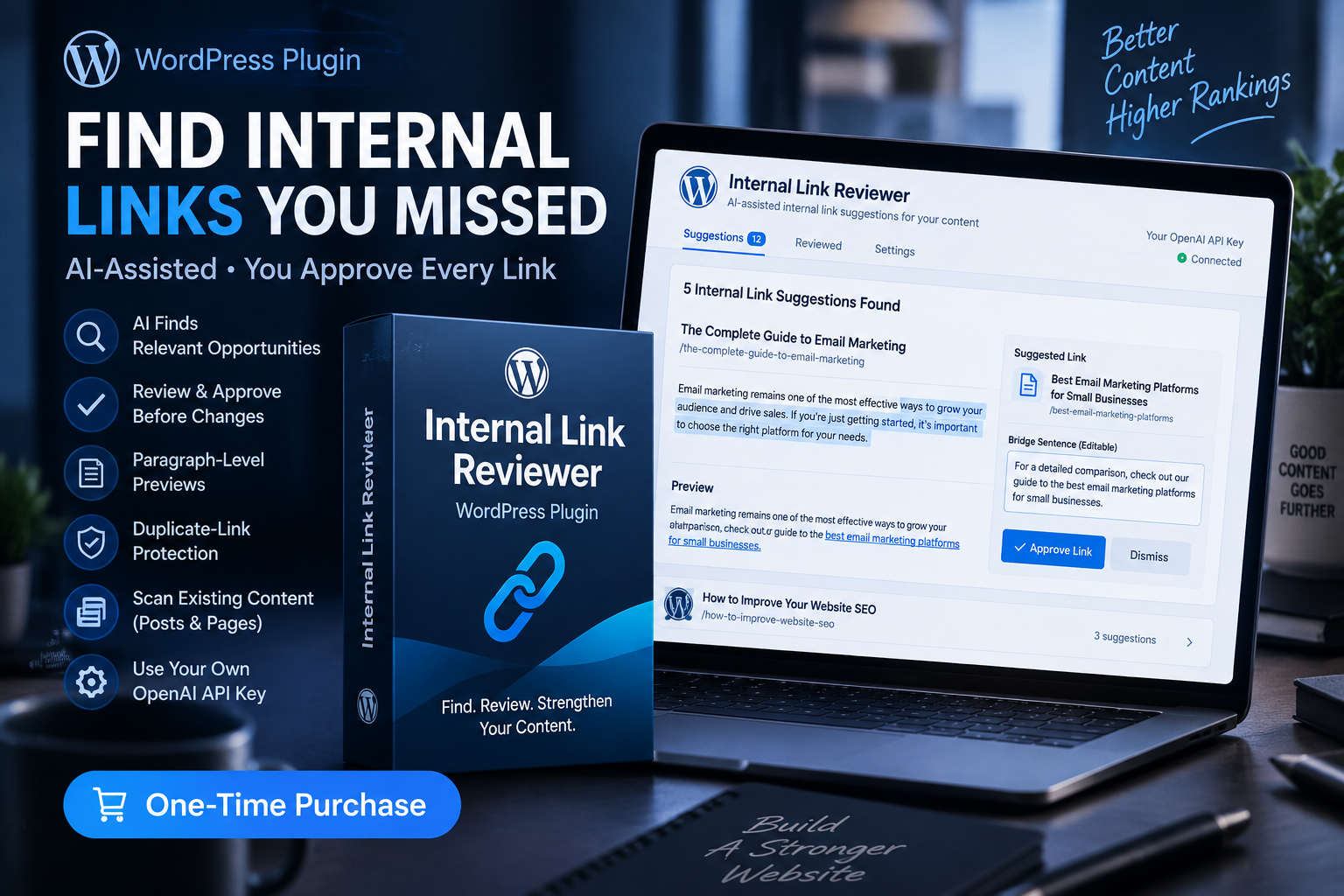
A page that is isolated from the rest of the website is harder for visitors to find and may be harder for Google to discover. This is why internal linking matters from the beginning. For WordPress sites where finding those connection opportunities becomes difficult to do manually, Internal Link Reviewer may fit this part of the workflow.
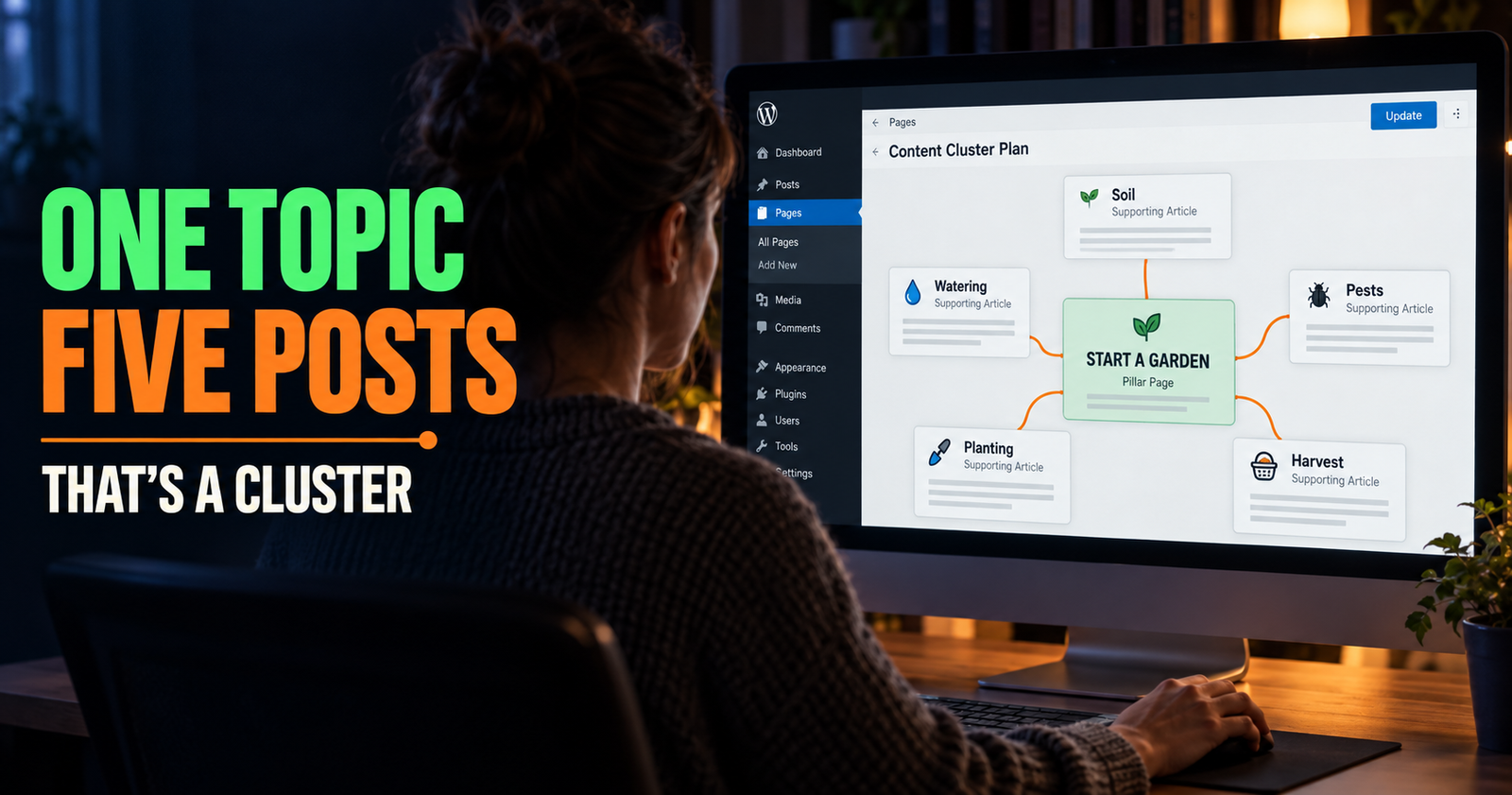
Your beginner SEO cornerstone, DIY SEO for Beginners, should gradually become one of the pages that connects the whole cluster. It gives readers a broad starting place, while more specific pages answer the exact issue they are facing.
Submit Your Sitemap, Then Stop Obsessing Over It
A sitemap is a file that lists important URLs on your website. Most modern WordPress SEO plugins and website platforms create one automatically.
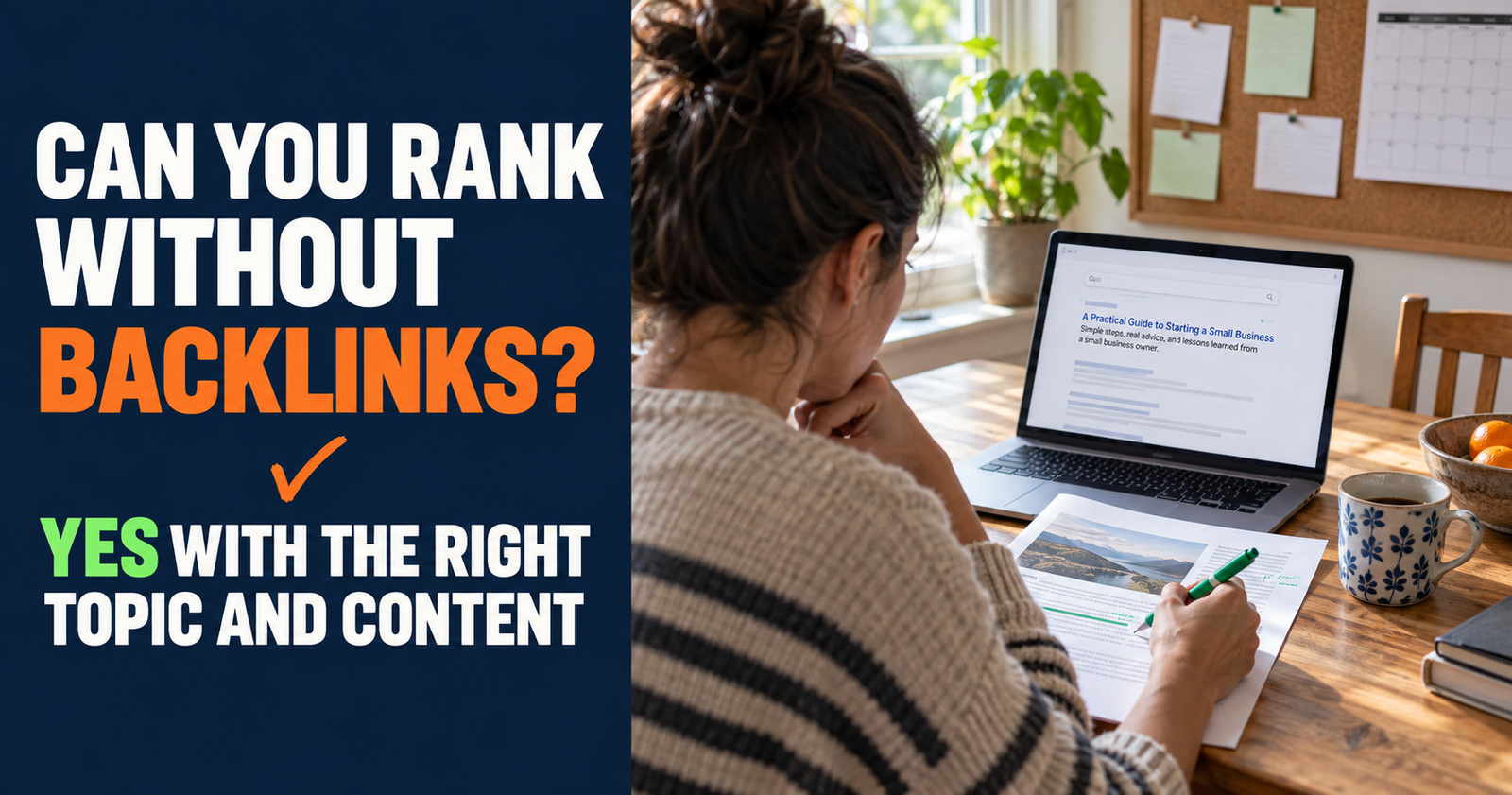
Submitting it through Search Console is a good launch task because it gives Google another way to discover your pages. But it is not a guarantee that every URL will be crawled, indexed, or ranked. Once discovery is covered, it is worth understanding how a new site can rank without a backlink campaign through useful content and structure.
That part matters. A sitemap is a map, not an order form.
Google says a sitemap helps search engines discover URLs, but it does not guarantee that every listed page will be crawled and indexed. You still need pages that are public, useful, reachable through links, and worth including in search.
After you submit the sitemap, check whether Search Console says it can read it. If it does, move on to building the site. Re-submitting it every day does not make Google trust your website faster.


Use Request Indexing the Right Way
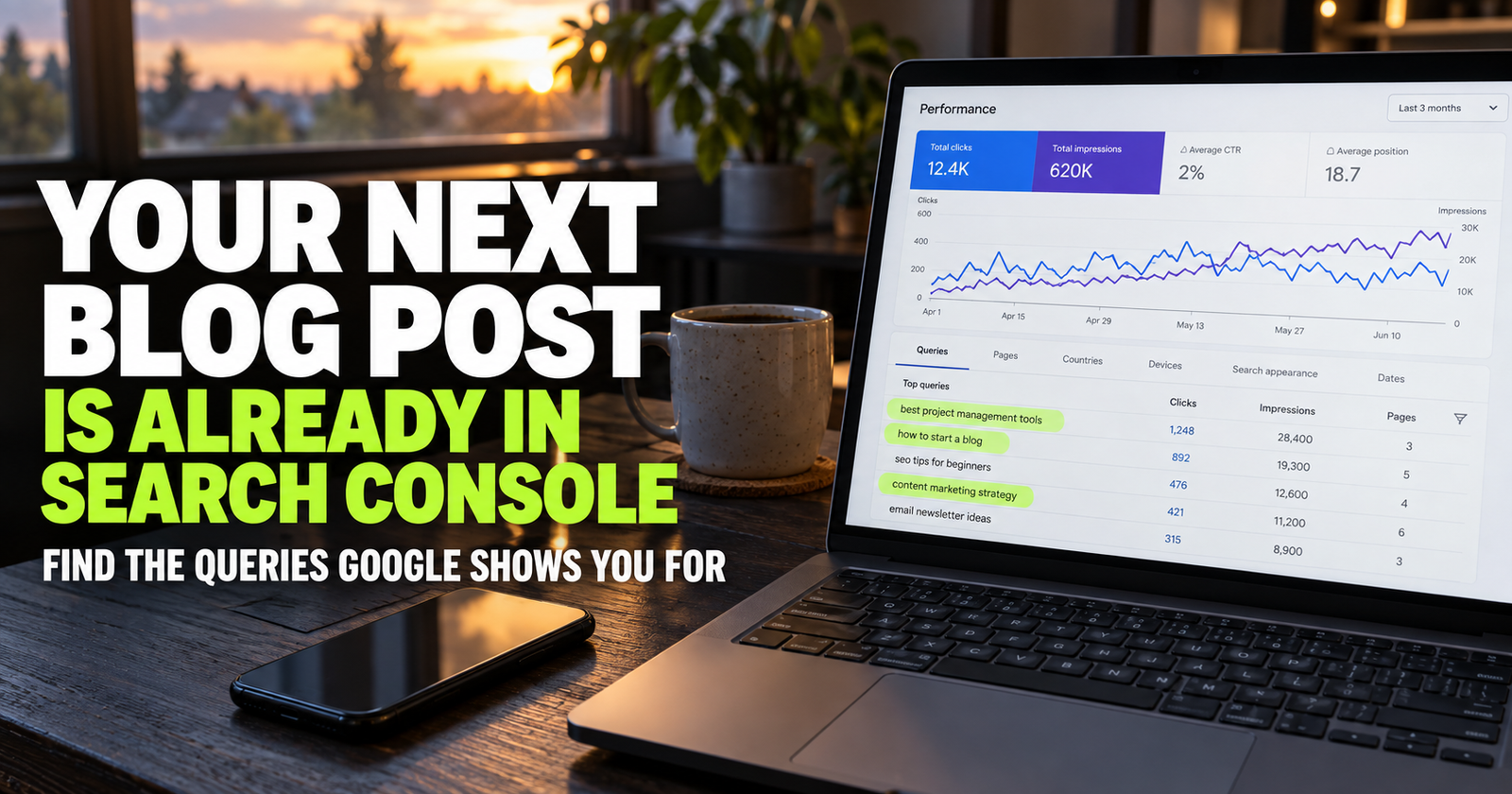
The Request Indexing button in Search Console is helpful after you publish an important page or fix a real indexing issue. It tells Google you would like the page reconsidered for crawling.
It is not a fast-pass to rankings.
Google may crawl the page in a few days or a few weeks. The request does not guarantee that the page will be indexed, and it does not make the page rank just because you clicked a button.
Use it thoughtfully.
- Publish the page completely before requesting indexing.
- Make sure the page is public and not blocked by noindex.
- Test the live URL in Search Console if you suspect a problem.
- Request indexing once after a meaningful publish or fix.
- Move on to your next useful task instead of repeatedly submitting the same page.
That last part is important. Repeatedly asking Google to look at the same unfinished page is like knocking on a door every five minutes after you already rang the bell.
Look for the Real Reason a Page May Be Missing
Search Console gives reasons for pages that are not indexed. The wording can look technical at first, but most issues fall into a few practical groups.
Google has not found the page yet
This is common with brand-new pages and sites. Add a relevant internal link to the page, confirm it appears in your sitemap, and give Google time.
A page without links is easy to overlook. Even one natural link from a related article can give both visitors and crawlers a clear path to it.
Google crawled the page but did not index it
This can happen when Google has seen the page but has not decided to add it to the index yet.
Do not assume this means the page is bad. But do look honestly at whether the page gives a clear, complete answer that is distinct from the rest of your site.
A thin article, a near-duplicate page, or a page that barely says anything beyond what another page already covers is less likely to be a strong candidate for indexing.
Google sees the page as a duplicate
Duplicate pages are not always a disaster. Sometimes a website creates several addresses that lead to the same content, and Google chooses one main version, called the canonical version.
For example, a page might be available with and without “www,” through an old URL, or with tracking parameters attached. Google may choose one version to keep in the index.
If you did not intentionally create duplicate content, check whether your site is redirecting correctly and whether one main page version is clearly linked throughout the site.
The page has a technical issue
Server errors, broken redirects, access errors, and mobile rendering problems can all keep Google from properly crawling a page.
This is where URL Inspection becomes useful again. It can show whether Google can access the live page and whether the page is returning an error.
If you are not comfortable fixing the technical problem yourself, take the exact Search Console message to your hosting company, theme developer, or site builder support team. A specific error message is far more useful than telling them, “Google will not show my website.”
Your Homepage Might Not Rank Right Away Either
A lot of new site owners expect the homepage to automatically show up when they search their brand name. Sometimes it does. Sometimes it takes longer.
A homepage has to be clear about what the business or site actually offers. A logo alone is not enough. Include plain words that explain the topic, service, product, or audience.
If you run a local service business, the homepage should say what you do and the area you serve. If you run a blog or resource site, the homepage should explain the kind of information readers can find there. A clear content focus becomes easier to build when you shape a clear content focus before expanding the site.
Google needs more than a stylish design to understand a website. It needs clear content.
Do not fill the homepage with every possible keyword. Just make sure a first-time visitor and a search engine can tell what the site is for.
Do Not Chase Your Site Around Google All Day
Checking your own site in Google over and over can make you feel like nothing is working. It also does not give you much useful information.
Search results can vary by location, device, search history, and the exact wording used. You may not see your own page even when Google has indexed it.
Search Console is more reliable for checking indexing and performance. It shows impressions, clicks, indexed URLs, and specific reasons for page problems.
Use Google Search for research. Use Search Console to understand your site.
That simple separation keeps you from making emotional decisions based on one search result.
What to Do This Week if Your New Website Is Not Showing Up
If your website is only a few days old, do not assume it is broken. Start with this simple order.
- Confirm that the website and important pages are publicly viewable.
- Verify your site in Google Search Console.
- Submit your sitemap if your platform provides one.
- Inspect the homepage and one important article with URL Inspection.
- Fix any clear noindex, access, redirect, or server problem Search Console identifies.
- Link important pages from your homepage, menu, or related articles.
- Publish another useful page that fits the same topic area.
- Give Google time to crawl and process the site.
- Check Search Console again later instead of refreshing search results every day.
This is the boring part of SEO, but it is also the part that works. A site becomes easier to find when it gives Google a clean, useful collection of pages to discover.
When You Should Be Patient and When You Should Investigate
Be patient when your site is new, your pages are public, Search Console shows no major issue, and you are beginning to see signs of crawling or impressions.
Investigate when your site has been live for a while and Search Console shows that important pages are blocked, excluded by noindex, returning errors, or never discovered despite being linked from the site.
The goal is not to force Google. The goal is to remove obstacles and build a site that gives Google a good reason to include it.
A new website does not become visible because it has been launched. It becomes visible because it is accessible, understandable, useful, and given enough time to be discovered.
Dax Weaver is an independent publisher who writes practical, plain-English guides to help website owners, creators, and small businesses get found online.