
Google Search Console date comparisons are useful, but they can also send you chasing problems that are not really problems.
I have watched people see a 40 percent drop, panic, rewrite a page, change the title, add more keywords, and then realize they compared a full 28-day period to only 21 days. The data did exactly what it was supposed to do. The comparison was the issue.
A date comparison is only helpful when the periods answer the same question.
If you want to know whether a change helped, compare similar time periods. If you want to know whether traffic fell, compare a clean period before the fall with a clean period after it. If you want to understand seasonality, compare the same dates from the previous year.
The number alone is never the story. It is just the first clue.
Start by Deciding What You Are Trying to Prove
Before I touch the date filter, I ask one plain question: “What am I trying to find out?”
That question determines the comparison.
If I changed an article title last month, I want to know whether the page earned more impressions or clicks after that update. If I think a site has a traffic problem, I want to know when the decline began and whether it happened on every page or only a few. If a seasonal topic dropped, I want to compare it to the same season last year, not to a random month in spring.
These are different jobs. They need different date ranges.
A lot of shaky SEO advice starts with somebody opening Search Console, selecting “Compare,” and treating every red number as proof something went wrong. It is not proof. It is an invitation to look closer.
Use Equal-Length Date Ranges First
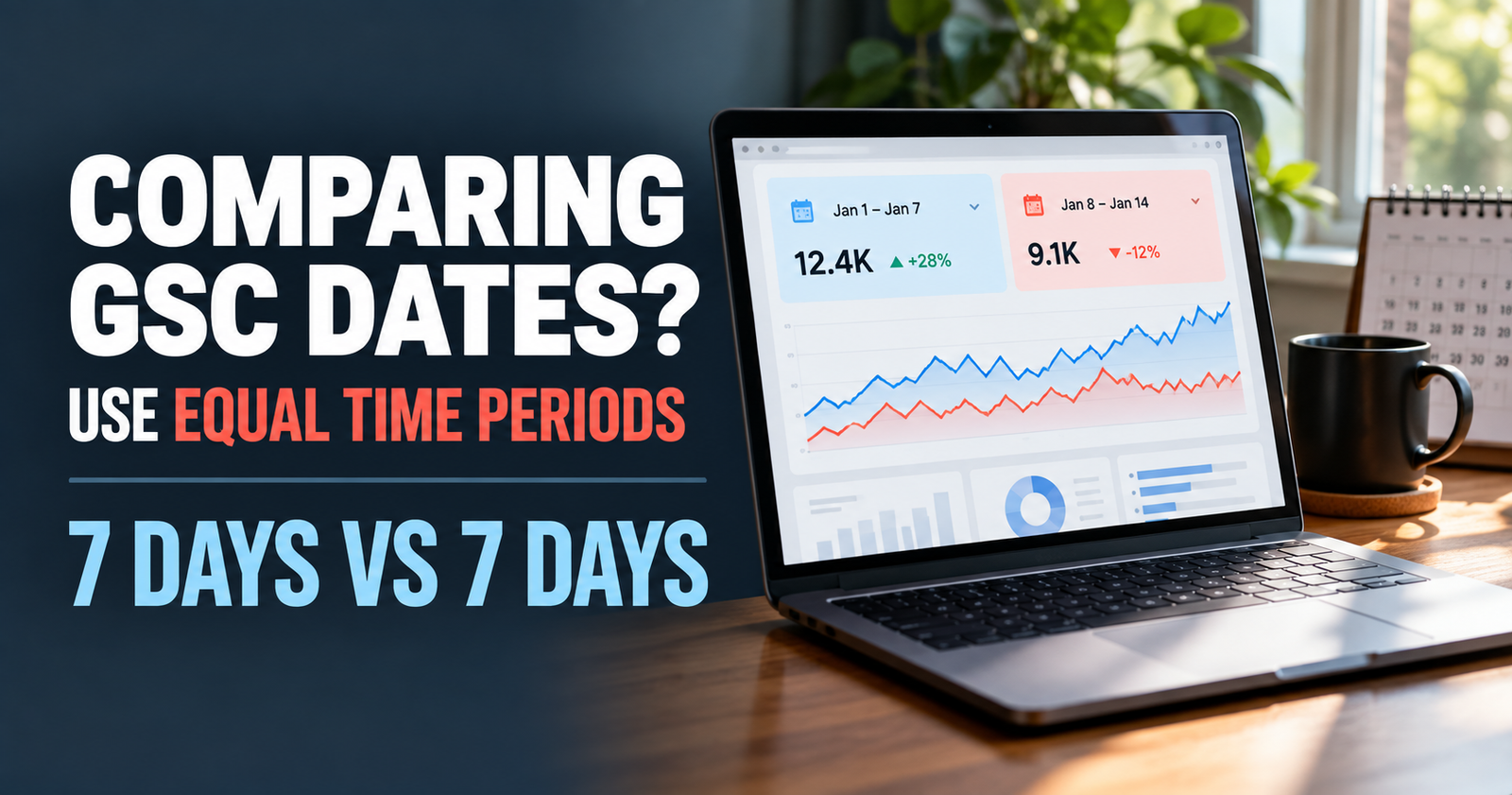
The simplest rule is also the one people skip most often: compare the same number of days.
A 28-day window compared against another 28-day window gives you a usable starting point. A 90-day window compared against the previous 90 days gives you a wider view with less daily noise.
I usually avoid comparing seven days to seven days unless a site gets enough traffic to make that useful. Small sites can have a normal week where one person finds a page, clicks it twice, and makes the chart look like a major growth event.
For a newer site, I prefer these starting points:
- Compare the last 28 days with the previous 28 days for a general check-in.
- Compare the last three months with the previous three months when I want a more stable trend.
- Compare the same dates year over year for seasonal topics or established sites with enough history.
- Use a custom range when checking the impact of a specific page update, technical issue, or site change.
Equal-length periods do not make the data perfect. They just remove one easy way to fool yourself.


Do Not Compare Incomplete Days
Search Console data is not always final the moment you open it. The newest days may still be processing, and a partial day can make the graph look worse than it really is.
That is why I do not judge a trend from “today” or from a comparison that includes an unfinished day. I cut off the most recent few days when I am trying to make a real decision.
For example, if it is September 26, I may compare August 24 through September 22 against July 26 through August 23. That gives Google time to finish reporting and gives me two equal, complete periods.
This matters even more when traffic is low. One missing click can change a small site’s click percentage dramatically. A page going from two clicks to one click is a 50 percent decline on paper, but it is not enough evidence to rewrite the page.
Look at Impressions Before You Obsess Over Clicks
Clicks are exciting because they represent visitors. But impressions often tell me what changed first.
An impression means Google showed your page in a search result. It does not mean the person saw it clearly, read it, or clicked it. Still, impressions can show whether Google is testing your page for more searches or showing it less often.
When I compare periods, I ask these questions in order:
- Did impressions increase or decrease?
- Did average position move enough to help explain that change?
- Did clicks move in the same direction?
- Did click-through rate change?
- Did the change happen across the site or on one page?
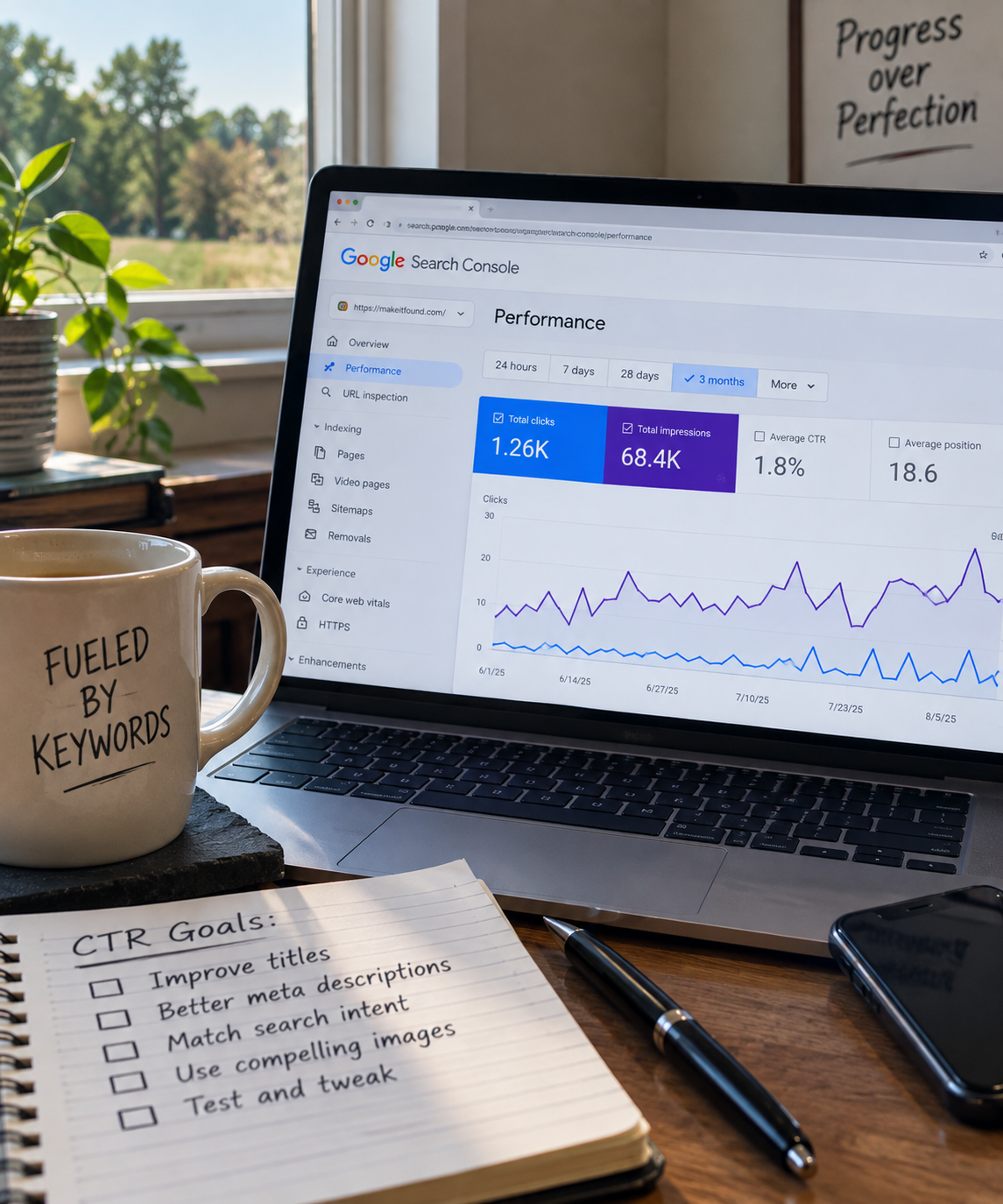
A page can earn more impressions and fewer clicks at the same time. That is not automatically bad. Google may be showing it for more searches, including broader or lower-position searches where fewer people click. The next step is to understand why CTR can fall without treating the change as an automatic failure.
If you are still getting comfortable with the metric itself, what impressions mean in Google Search Console gives you the plain-English version.



Do Not Treat Average Position Like a Single Ranking
Average position is one of the easiest numbers to misread.
A page does not have one permanent ranking. It can appear in different positions for different searches, devices, locations, and result layouts. Search Console averages all that activity into one number.
So if average position changes from 24 to 18, that is worth noticing. But it does not mean your page suddenly ranks number 18 for every keyword. Likewise, a page moving from 12 to 17 does not always mean it “dropped five spots” in the way people imagine.
I use average position as a direction signal, not as a scoreboard.
If impressions rose while average position dipped a little, Google may simply be showing the page for a wider group of searches. If impressions and clicks fell while average position worsened, that is a stronger sign that something changed in the search results or in how Google sees the page.
The important step is clicking into the page or query data next. That is where the useful answer usually is.
Compare the Whole Site, Then Narrow It Down
I start at the Performance report with no page or query filter. That tells me whether the change is broad.
If the entire site’s impressions and clicks are up or down, I look for a sitewide explanation. Maybe the site is new and Google is still testing it. Maybe the season changed. Maybe pages were accidentally blocked, removed, redirected, or noindexed. Maybe search interest shifted.
If the whole site looks fairly steady, but clicks are down, I filter by pages.
I want to find out whether one page caused most of the change. On smaller websites, one article can make a huge percentage difference. That is normal. It is also why a sitewide chart can be misleading.
After I find a page that changed, I filter to that page and open the Queries tab. Now I can see which searches drove the movement.
This turns “my traffic is down” into something you can actually work with, such as:
- One page lost impressions for its main query.
- One page gained impressions but has not earned clicks yet.
- Google started showing a different page from the site for the same topic.
- A seasonal search faded as expected.
- The site is still too new for a short comparison to mean much.
That is a much better starting point than changing five articles because a top-level chart looked scary.
Compare Queries One at a Time When You Have a Real Target
For a specific keyword, use the Query filter before drawing a conclusion.
Suppose you updated an article because you wanted it to rank better for “how to use internal links on a small website.” Do not look only at the page’s total clicks. The page may be getting traffic from several searches that have nothing to do with the update.
Filter to the exact query or a close group of queries. Then compare before and after.
I would check:
- Whether impressions increased for that query.
- Whether the page shown in results is still the page you intended.
- Whether average position is moving in a useful direction.
- Whether the title and description are getting clicks once the page is shown more often.
- Whether Google is now showing the page for related questions you did not target directly.
That last point can reveal content gaps, but it can also create distraction. A weird one-impression query is not a new article plan. I look for patterns, not random crumbs.
Give an SEO Update Enough Time to Work
A page change needs time to be crawled, processed, and tested. I do not declare an update successful or unsuccessful after three days.
For a simple title or wording change, I might begin checking after a couple of weeks, but I would still wait for enough data before making a decision. For a significant rewrite, internal-linking improvement, or new section, I give it longer.
The right wait depends on the site’s size, crawl frequency, search demand, and how much traffic the page already receives. A high-traffic page may show a pattern sooner. A new site with a handful of impressions may need much longer.
The bigger mistake is not waiting. It is changing the page again before you understand the first change.
If you update a title on Monday, rewrite the introduction on Thursday, add five links on Saturday, and change the page topic two weeks later, you have made it almost impossible to tell what helped.
My rule is simple: make one meaningful improvement, write down what changed and when, then compare equal periods after the page has had a real chance to settle.


Watch for Seasonal Changes Before Calling It a Drop
Some searches rise and fall because people’s needs change. Gardening questions, holiday topics, tax questions, school-related searches, and weather problems are obvious examples, but seasonality can affect more topics than people expect.
A lower number this month is not always a failing page.
That is why year-over-year comparisons are so helpful once a site has enough history. Comparing “last September” with “this September” is usually more honest than comparing September with August.
If you do not have a full year of data yet, look at the actual queries. Ask whether the search itself makes sense for the time of year. Then avoid making a drastic change based on a pattern your site simply has not had time to prove.

A traffic drop deserves attention when the decline is clear, sustained, and not explained by seasonality or a simple reporting issue. I break down the next steps in why Google search traffic drops.
Separate Normal Noise From a Real Change
Not every change needs an action.
On a small site, a few impressions can move average position around. One click can change click-through rate enough to look dramatic. That is just the math of low numbers.
I get more interested when I see one of these patterns:
- A change continues across several complete comparison periods.
- A page loses impressions for its main relevant queries.
- Another page from the same site starts appearing for the query instead.
- A group of related pages declines together.
- The page is still indexed, but Google is no longer testing it for the topic it previously matched.
- A title change creates more impressions but a weaker click-through rate.
The key word is pattern. You are looking for evidence that keeps pointing in the same direction.
Check the Page Tab Before Fixing a Query Problem
Sometimes a query loses traffic because Google changed which page from your site it prefers.
This is more common than people realize, especially after publishing several articles around a close topic. You may have one detailed guide and one shorter support article, but Google may begin showing the support article for a search where the guide is the better answer.
When I suspect that is happening, I filter the query, open the Pages tab, and compare which URLs are receiving impressions for it.
If the wrong page is appearing, I do not instantly delete anything. I look at the intent of both pages. One may need clearer internal links, better headings, a stronger title, or a more distinct purpose. Sometimes the solution is adding a section to the better page. Other times the two pages are too close and need to be separated more clearly.
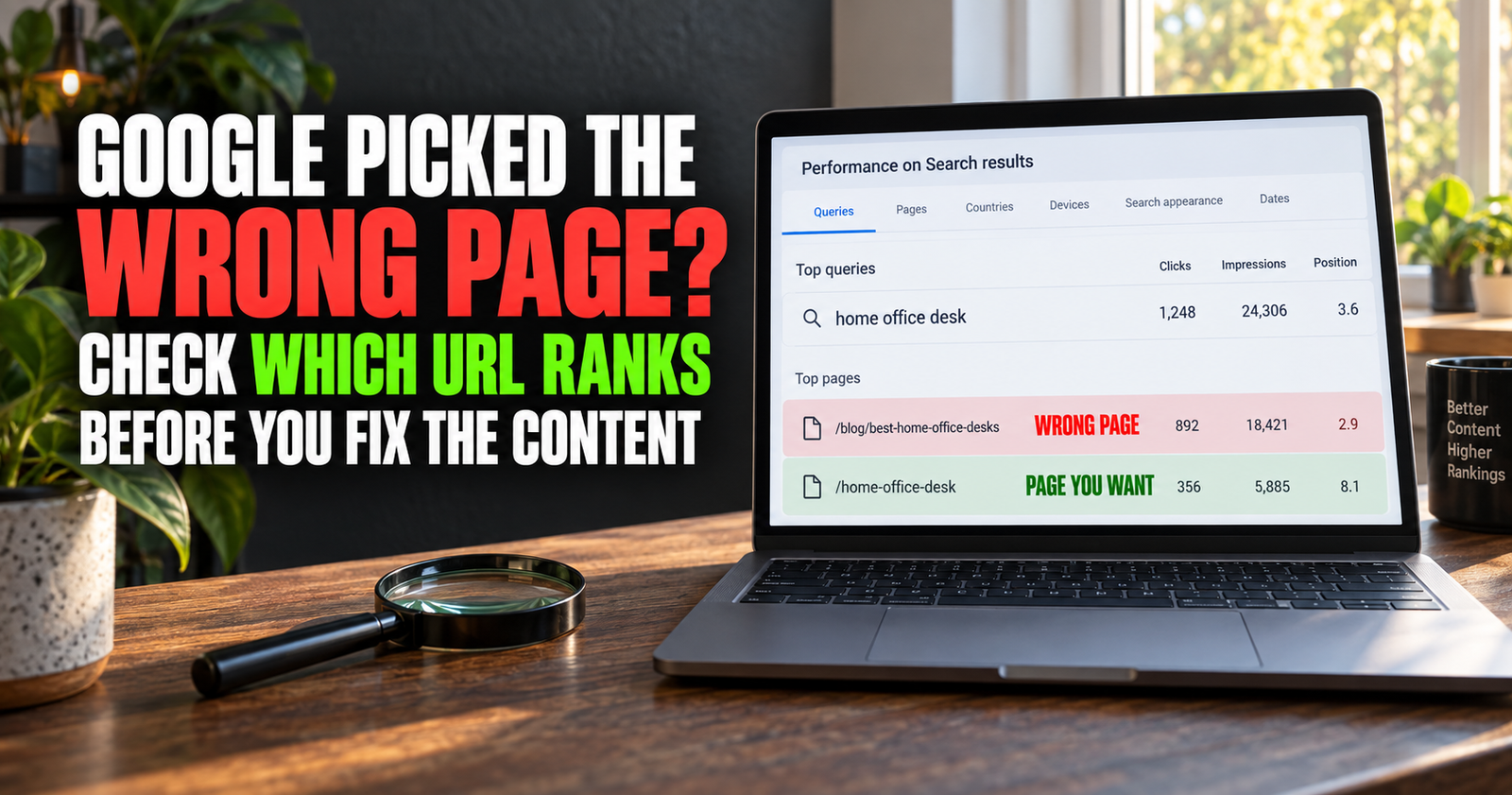
That is the exact issue covered in how to check if Google is ranking the wrong page.
Keep a Tiny Change Log
You do not need a complicated SEO dashboard to compare dates well. A basic note works.
Whenever you make an important change, record:
- The page URL.
- The date you changed it.
- What changed.
- Why you changed it.
- The main query or goal.
- The date you plan to review it again.
This protects you from relying on memory. After a few months, you will not remember whether you changed the title before or after a traffic bump, whether you added internal links to one page or three, or which version of the article you were comparing.
A small change log also helps you stay patient. Instead of checking every day and reacting to every wiggle, you have a real review date and a reason for the comparison.
My Simple Search Console Date Comparison Routine
When I want a clean answer, I use this routine.
- Choose complete date ranges of the same length.
- Start with at least 28 days unless the site has enough traffic for a shorter period to mean something.
- Turn on clicks, impressions, average CTR, and average position.
- Look at the whole site first.
- Filter to Pages to find what moved most.
- Filter to one page and check Queries.
- Check whether the intended page is still showing for the important query.
- Compare the result with the change log and the season.
- Make one reasonable improvement only if the data points to a real issue.
- Set the next review date instead of checking it ten times a day.
This routine is not flashy, but it keeps me from making emotional SEO decisions. Search Console is most useful when you let it show you a pattern, then make one calm, informed move.
Alden Whitaker writes practical, plain-English SEO guides for Make It Found that help small website owners make smarter content decisions without getting lost in agency jargon.