
A WordPress website can look perfectly fine from the front and still have a lot of work quietly piling up behind the scenes.
Maybe old posts are not connected to newer ones. Maybe good pages are getting Google impressions but never enough clicks. Maybe you have affiliate links scattered across hundreds of articles with no consistent way to make the recommendations stand out. Maybe old categories are a mess, images are failing, or visitors are landing on a page and leaving because there is no obvious next article to read.
Those are not glamorous problems, but they are the problems that decide whether a growing website stays manageable or becomes a full-time scavenger hunt.
I do not think most website owners need 40 plugins. In fact, installing plugins just because they look interesting is a good way to make WordPress slower, more confusing, and harder to maintain. The plugins worth using should remove a real repeated task, protect something important, or help you make a better decision with the content you already have.
That is the standard behind every tool in this guide.
These are not “press a button and rank number one” plugins. No honest plugin can do that. They are practical tools for bloggers, affiliate marketers, publishers, small businesses, and anyone who has outgrown trying to remember every old post and fix every problem manually.
Start with the problem, not the plugin
Before I recommend any WordPress plugin, I ask a simple question: what job is this supposed to remove from my plate?
A plugin is helpful when it handles a job that is repetitive, easy to forget, or difficult to do consistently across a large site. It is not helpful when it creates more settings, more notifications, and more things to troubleshoot without giving you a clear result.
For example, adding a few internal links by hand is not hard. Remembering the best older article to link from when you have 500 posts is hard. Checking whether a few YouTube videos still work is easy. Checking hundreds of embeds spread across old articles is not.
That is where a good plugin earns its place.
The rest of this guide is organized around the real problems website owners run into as their content grows: getting readers to more of the site, improving pages that already have potential, organizing a content library, maintaining affiliate content, and cleaning up things that slowly make a site look neglected.
Internal Link Reviewer for WordPress
Internal links are one of the most overlooked parts of a growing content site.
Most people understand the basic idea. You write an article, mention a related topic, and link to another page on your own site. The trouble starts when your site grows. You may have hundreds of genuinely useful articles, but no realistic way to remember all of them while writing something new.
That leads to a common problem: your best older pages become buried. They may still be useful. They may even be getting impressions in Google. But readers rarely discover them because no newer article points people in their direction.
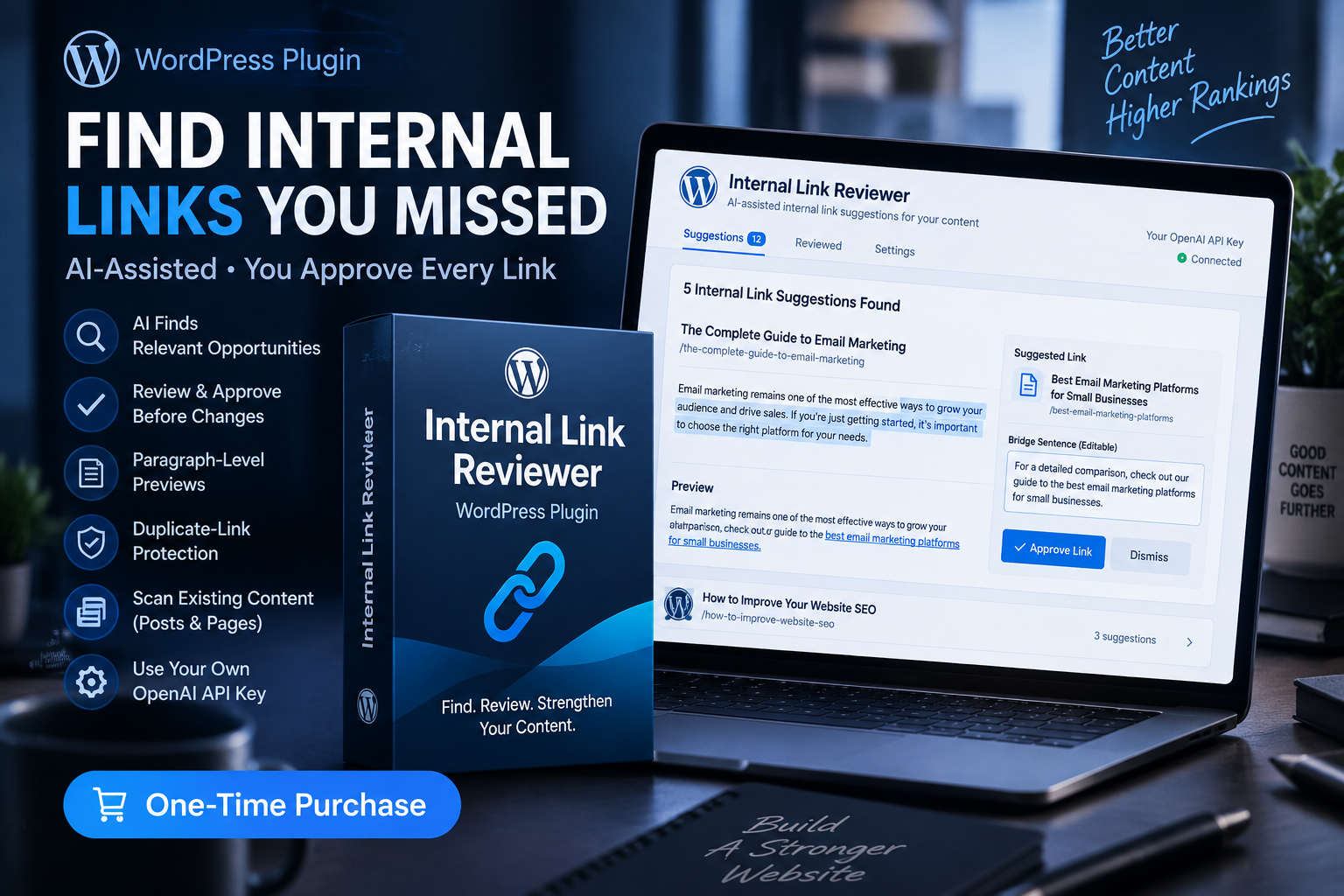
The Internal Link Reviewer WordPress plugin is built for that exact problem. It scans published posts and pages, looks for contextual linking opportunities, and places suggestions into a review queue instead of silently changing your content.
That last part matters to me.
I do not like the idea of a plugin automatically stuffing links into a website. Internal linking needs judgment. A link can be technically relevant and still be awkward, too close to another link, or not useful at that specific point in the article. This plugin is designed around manual approval, so you can see the paragraph, edit the suggested bridge sentence, approve it, reject it, or leave it alone.
It is not trying to replace editorial judgment. It is trying to save you from forgetting the thousands of connections you could not possibly keep in your head.
Who it is best for
This is especially useful for bloggers, niche-site owners, affiliate publishers, agencies, and any WordPress site with enough published content that internal linking has become inconsistent.
If your site has 15 posts, you can probably handle internal links manually. If your site has 150, 500, or several thousand articles, the job changes completely. At that point, missed links are not usually caused by laziness. They are caused by too much content to mentally track.
The plugin also makes sense for someone who knows internal links matter but wants to keep a careful hand on the work. Every recommendation stays a recommendation until you decide it belongs.
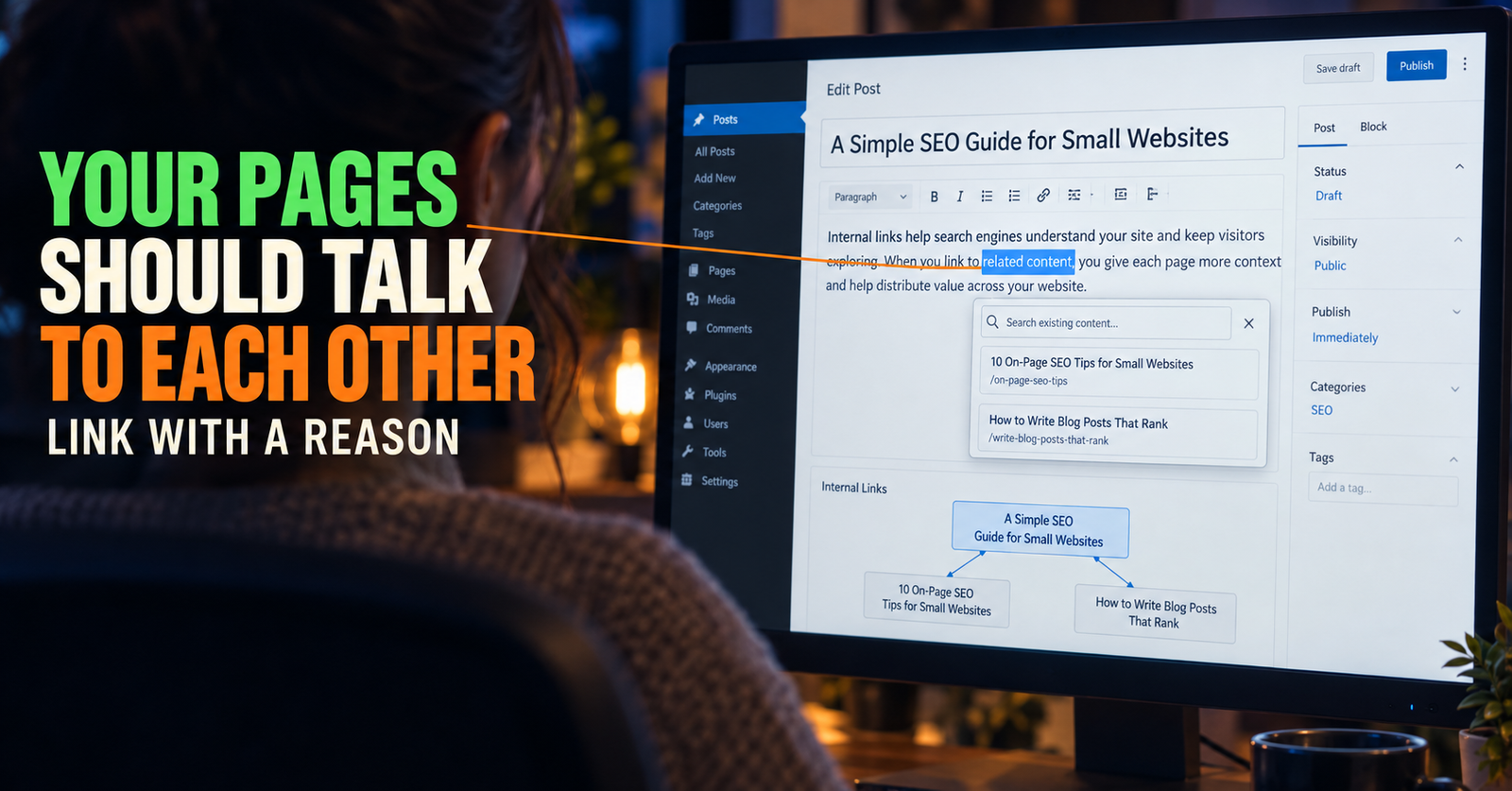
That fits the same approach I use in the guide on internal links for a small website. The goal is not more links. The goal is the right next link for the reader.
What makes it different from a basic internal-link tool
Some internal-link tools focus on automatic insertion. Others make you search for pages manually every time you write. Internal Link Reviewer sits in the middle.
It uses your own OpenAI API key to find opportunities in your existing content, but it keeps every change in a review workflow. It also includes safeguards such as duplicate-destination protection, paragraph spacing checks, previews, and eligible rollback support.
That means you are not staring at a vague report that says “add more internal links.” You are looking at a specific proposed connection inside a real paragraph, with the chance to make it fit your own voice before it goes live.
For a content-heavy site, that is a much more useful place to start.

Smart Related Content Inserter for WordPress
A normal text link is useful, but it is easy for a reader to miss, especially inside a long article.
Sometimes the better move is to visibly show a reader that there is another helpful page waiting for them. That is where related-content cards can help. The problem is that manually creating and maintaining those blocks across hundreds of articles gets old fast.
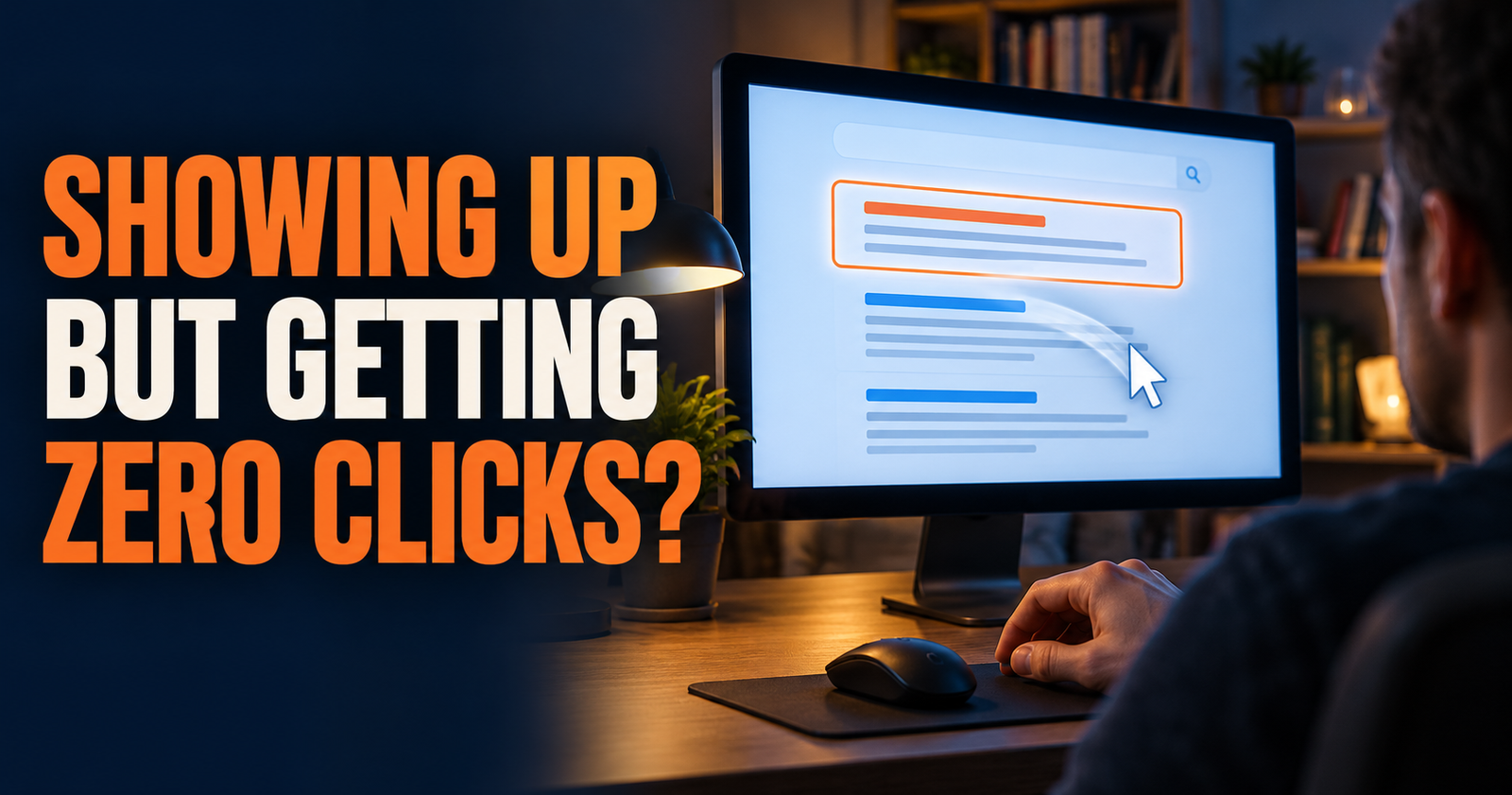
The Smart Related Content Inserter for WordPress automatically displays responsive rows of related article or product-style cards before selected H2 headings.
That placement is more thoughtful than a generic “related posts” box at the bottom of an article. A reader may be ready for the next answer halfway through a guide, not after they have already left the page. By choosing where those rows appear, you can make the recommendation feel like part of the reading path instead of an afterthought.
Why this is useful for content clusters
A content cluster works best when one article naturally leads to another. Your broad guide introduces the topic. Supporting articles answer the specific questions. Related-content rows make those connections more visible.

For example, a beginner SEO guide can show a related row before the section on keywords. A reader who needs deeper help can see the relevant keyword article right there instead of having to search your site menu or scroll to the bottom.
This is helpful when you have a lot of content that truly belongs together. It is not a reason to show unrelated pages just because they have the same tag.
The plugin can use category and tag relationships, restrictions, and separate article and product streams. It also generates the rows on the front end instead of permanently adding them to your article content. That keeps your original posts clean while letting you update the display rules later.
Who should use it
I would look at this plugin if you publish long-form articles, product reviews, how-to guides, or any type of content where readers often have a sensible next question.
It is especially useful for affiliate sites that need to show related product posts without turning every paragraph into a hard sell. It can also help a small site feel easier to explore when it has enough good content but not much brand recognition yet.
A reader who finds one useful page should not have to guess what else you have written. The right related-content row gives them a clear next choice.
Auto Linked Featured Images for WordPress
A linked article can be easy to miss when it is only a few blue words in the middle of a paragraph.
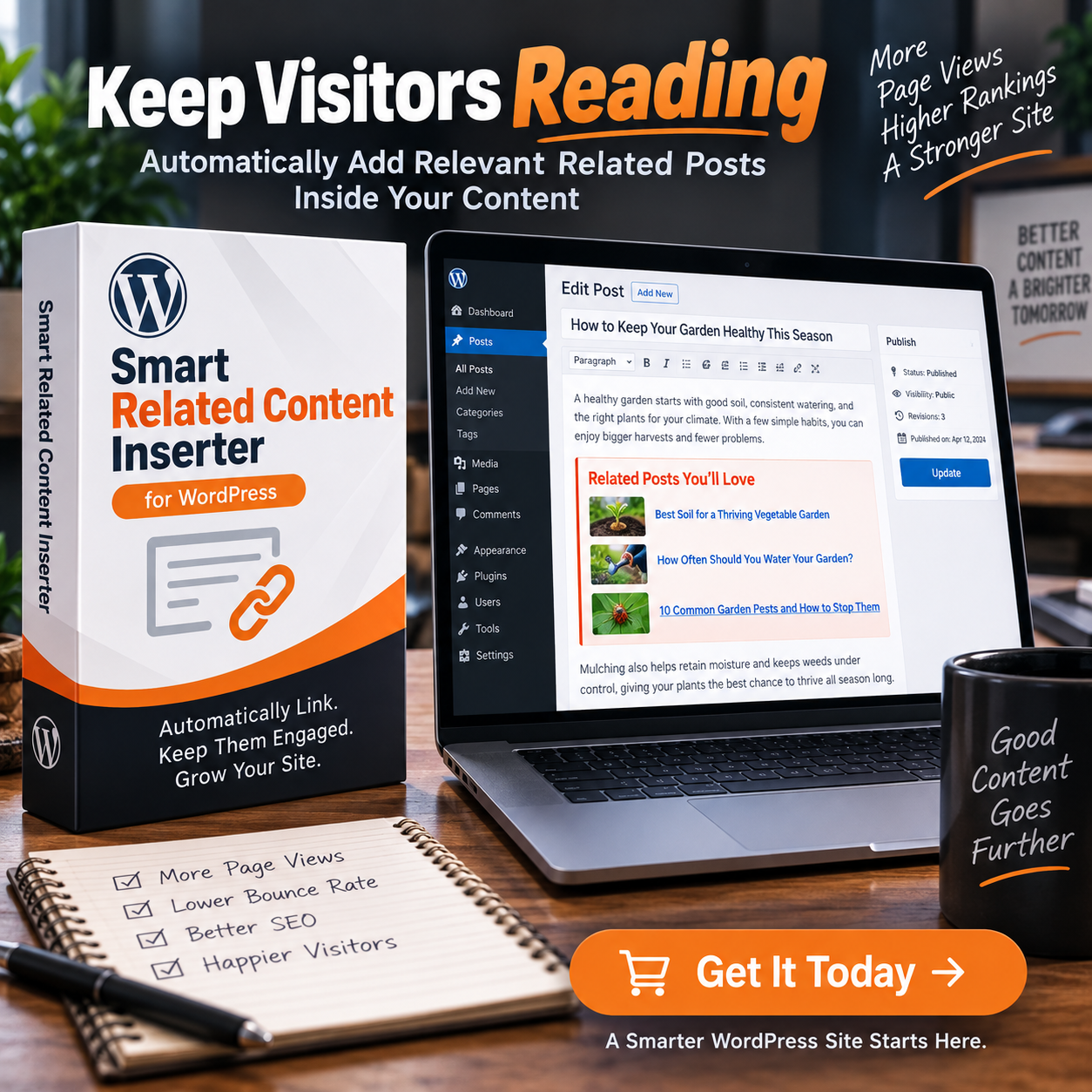
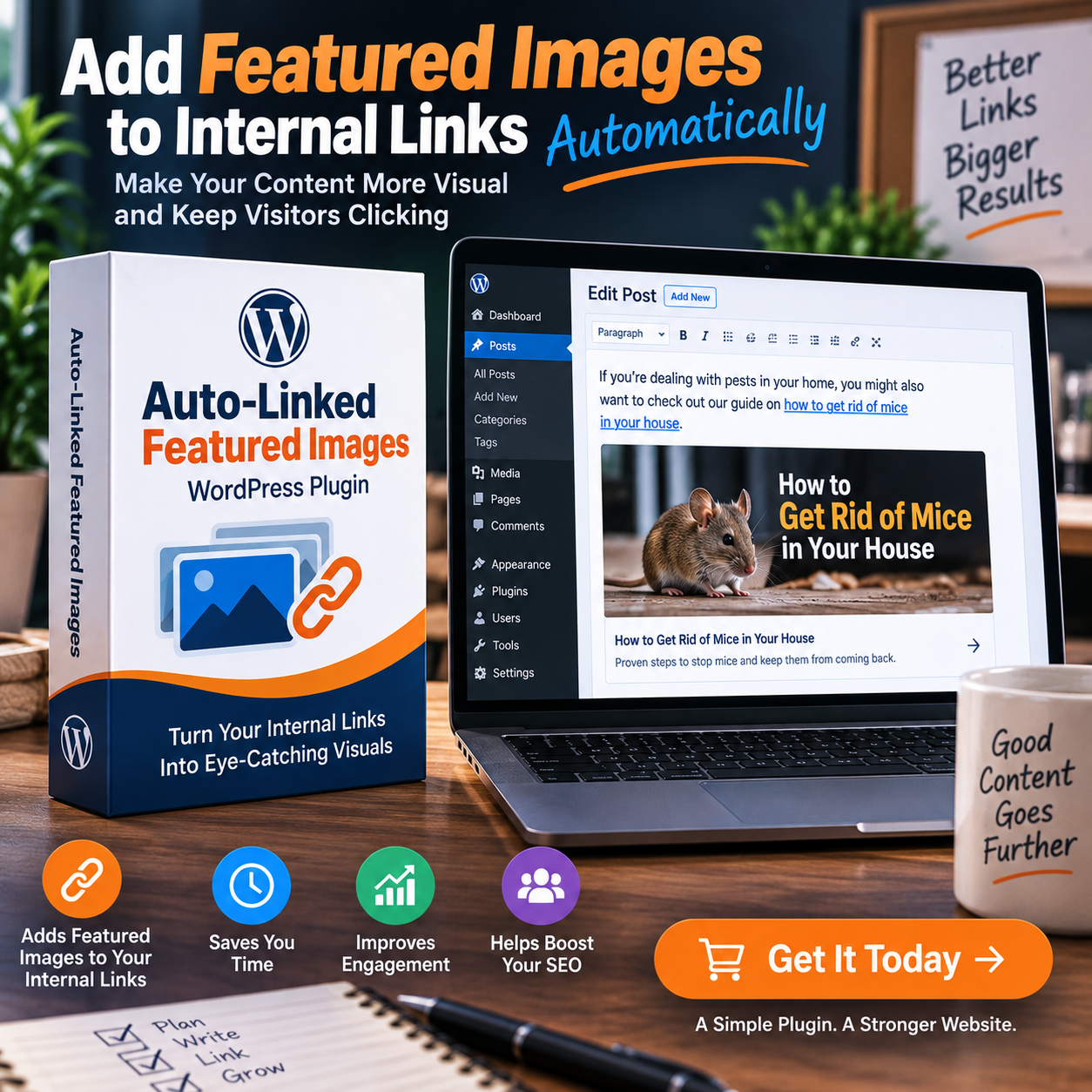
The Auto Linked Featured Images WordPress plugin gives existing internal links more visual weight by automatically showing the destination article’s featured image beside the paragraph containing the link.
The important distinction is that it works from links you have already chosen to add. It does not invent an internal-linking strategy for you. It takes a good, intentional internal link and makes it more noticeable for readers who are more likely to respond to an image than a text link.
That can be useful on sites with long articles where internal links are naturally spread through the content. It can also make a website feel more like a well-organized publication instead of a plain wall of text.
Why I like the approach
The plugin works when WordPress renders the page, so the original article itself is not permanently changed. You keep writing normally. You add internal links where they make sense. Then the plugin can display the matching featured image before or after that paragraph on the front end.
That separation is smart because it keeps the content editable and portable. You are not manually inserting the same image over and over into hundreds of posts.
It also gives you controls that matter on a real site: image limits per article, per-destination limits, duplicate protection, exclusions, responsive sizing, lazy loading, and the ability to choose which areas should never display images.
Those settings are important because visual linking can become cluttered if it is allowed everywhere. The best use is selective. Let the important recommendations stand out, but leave plenty of breathing room.
When it is a better fit than related-content cards
Smart Related Content Inserter is better when you want an actual group of recommended cards at planned points in the article.
Auto Linked Featured Images is better when you already use natural in-paragraph internal links and want the exact destination page to become more visible without creating a separate recommendation block.
The two tools can complement each other, but they solve different jobs. One creates a structured related-content experience. The other visually supports the internal links already built into your writing.
SearchLift AI for WordPress
One of the most frustrating situations in SEO is having content that is close, but not close enough.
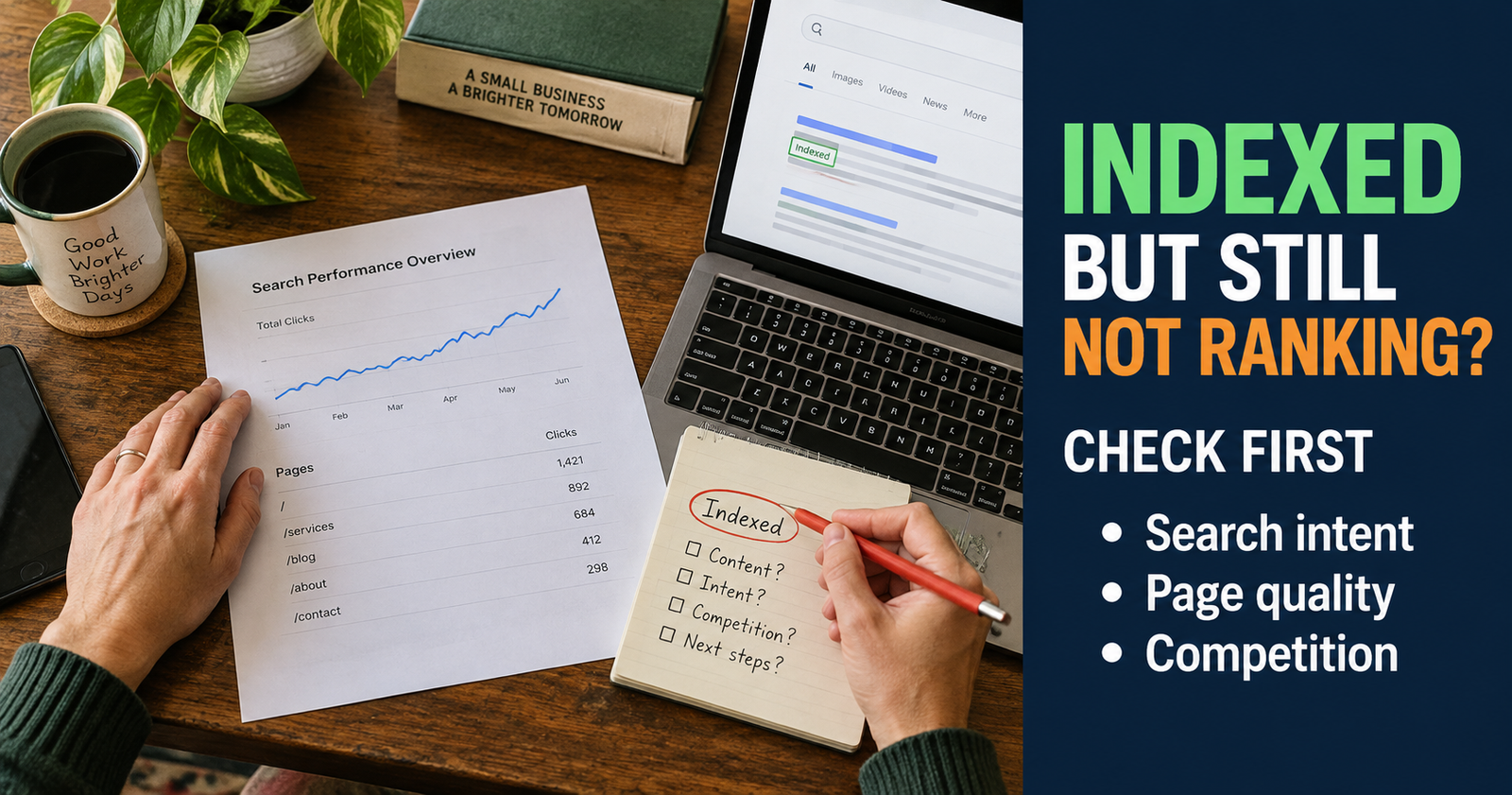
You open Google Search Console and see impressions. Maybe the page is showing for queries you did not expect. Maybe it ranks around page two or three. Maybe it gets visibility but almost no clicks. You know something is there, but you do not know what to improve first. That situation is exactly what indexed but not ranking helps diagnose before you start changing the page.
That is the problem SearchLift AI for WordPress is designed to address.

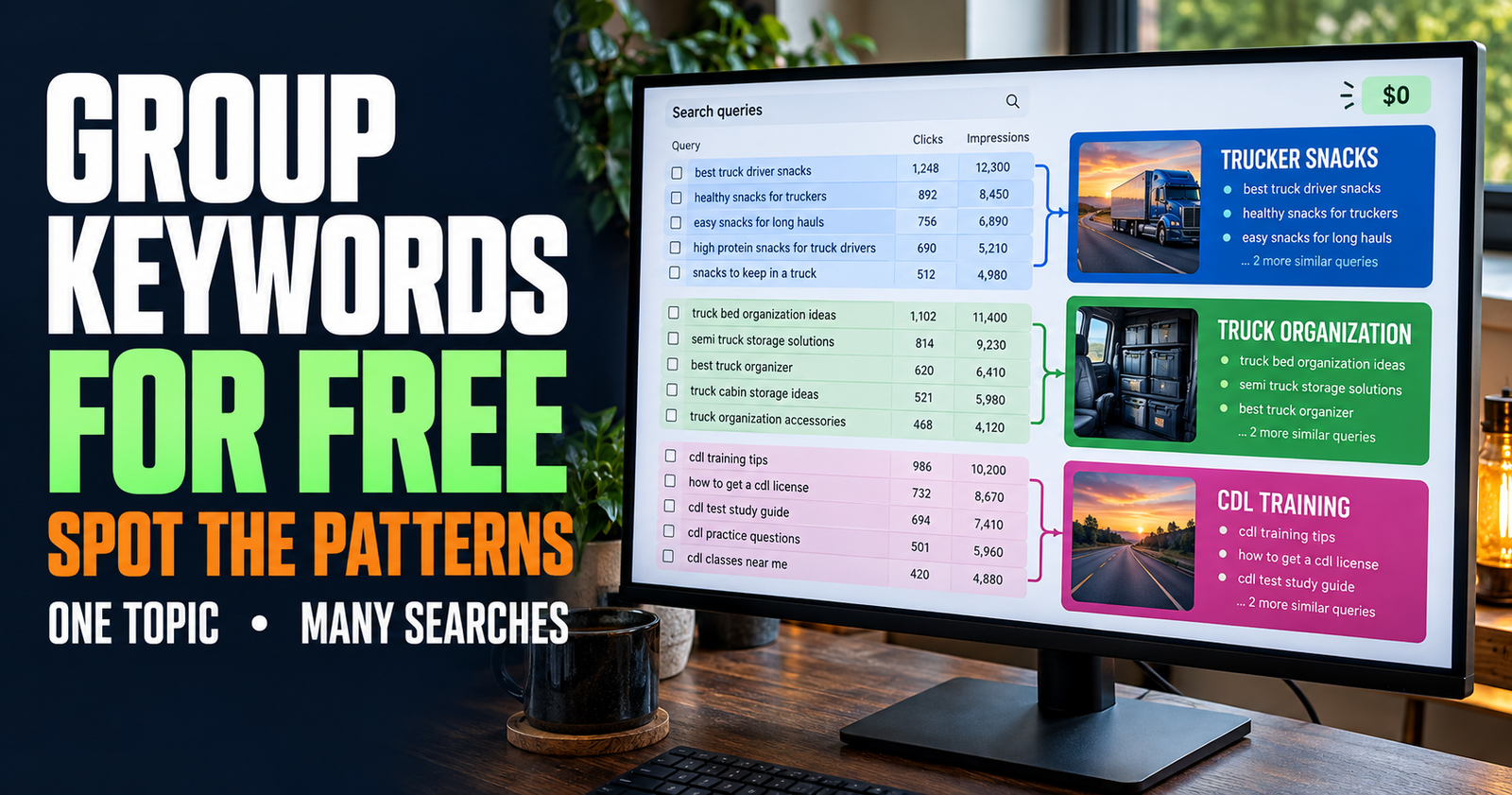
Instead of giving you a generic content score or a giant checklist, it connects to your Google Search Console data and looks at the actual queries and pages your site is already showing for. It identifies pages with growth potential, explains the opportunity, and prepares focused recommendations for review.
Nothing is automatically rewritten or published.
That is the part I would want from any AI-assisted SEO tool. The tool should help me see the opportunity and save time preparing the work. It should not quietly rewrite the site with no understanding of the brand, the audience, or what the article is trying to accomplish.
Why Search Console data matters
A lot of SEO advice starts with hypothetical keywords. That can be useful when planning something new. But once an article is live, your own Search Console data is more valuable because it shows what Google is already testing your page for.
Maybe a page gets impressions for a question you only partly answer. Maybe the title is not earning clicks even though the content is relevant. Maybe the article is ranking for a related phrase that deserves its own section, a clearer heading, or a more direct explanation.
SearchLift AI is built around that kind of real evidence. It helps turn “I have impressions but I do not know what they mean” into a reviewable plan for a specific page.
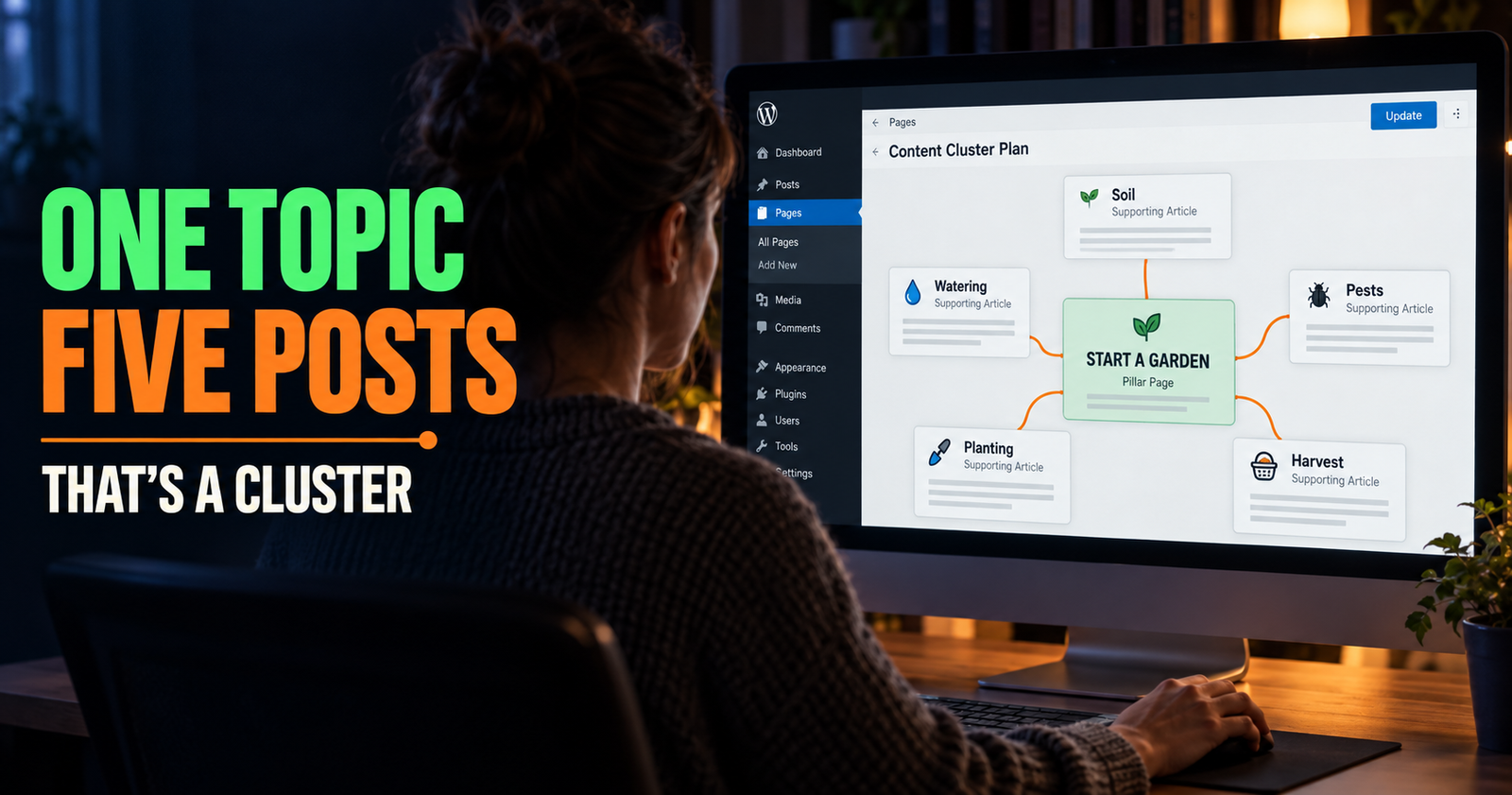
That makes it a natural fit for the next stage after you understand how to build an SEO content cluster. Publishing a cluster is important. Improving the pages that already show signs of life is how you keep it from sitting untouched.
Who should use it
This plugin makes the most sense for site owners who already have Google Search Console connected and enough published content to produce useful data.
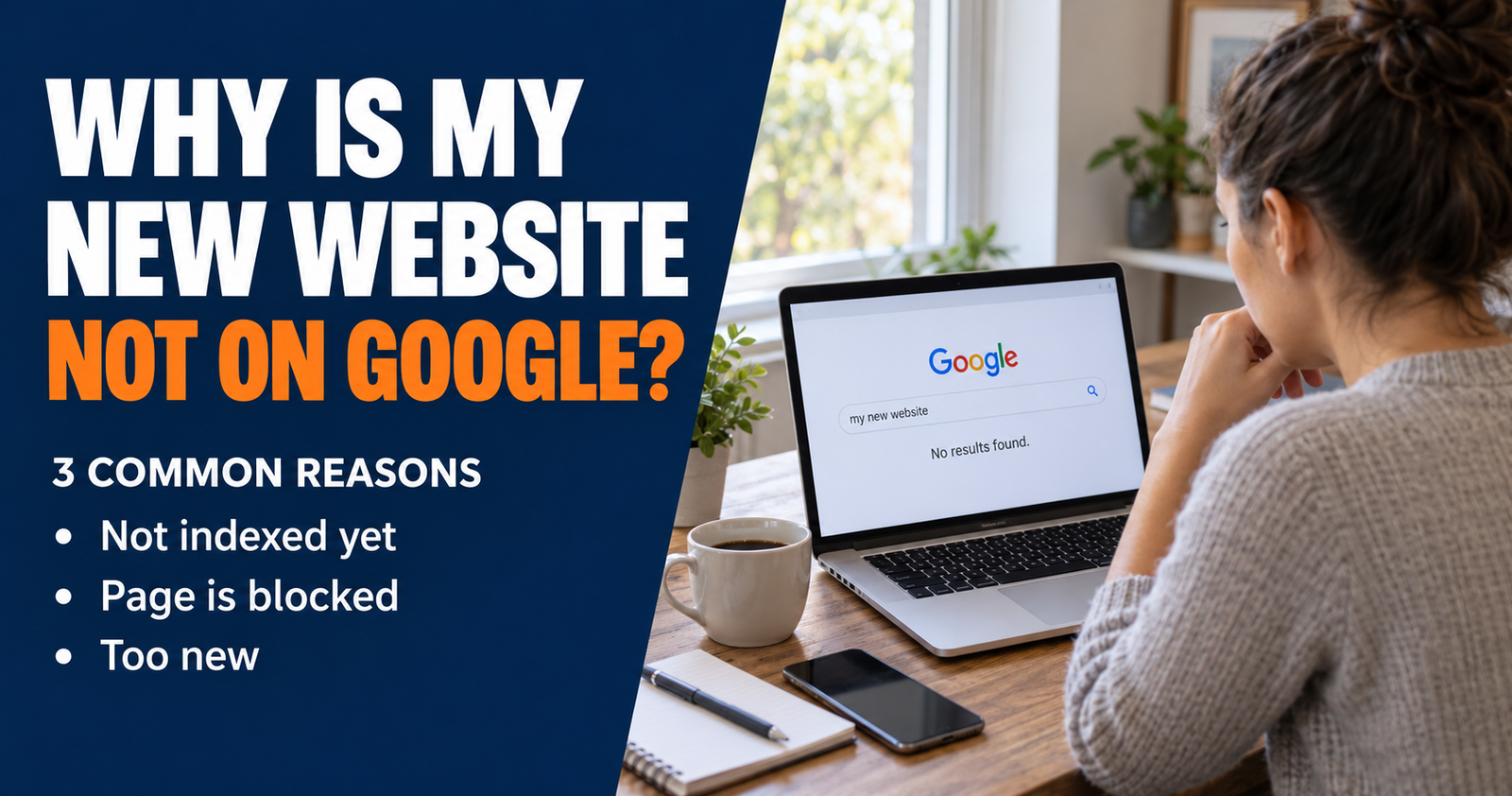
It is not a shortcut for a brand-new site with no impressions yet. A site needs some time and some visibility before Search Console can reveal meaningful opportunities. But for bloggers, publishers, affiliate sites, and small businesses with existing posts that are getting impressions, it can make the optimization process much less overwhelming. Readers dealing with a brand-new site with no impressions yet can use this troubleshooting guide to determine whether Google has discovered or indexed the site.
You still need to review the advice. You still need to make sure a suggested change fits the reader’s actual intent. But the plugin gives you a much better place to start than opening random old articles and guessing.
Post Insights for WordPress
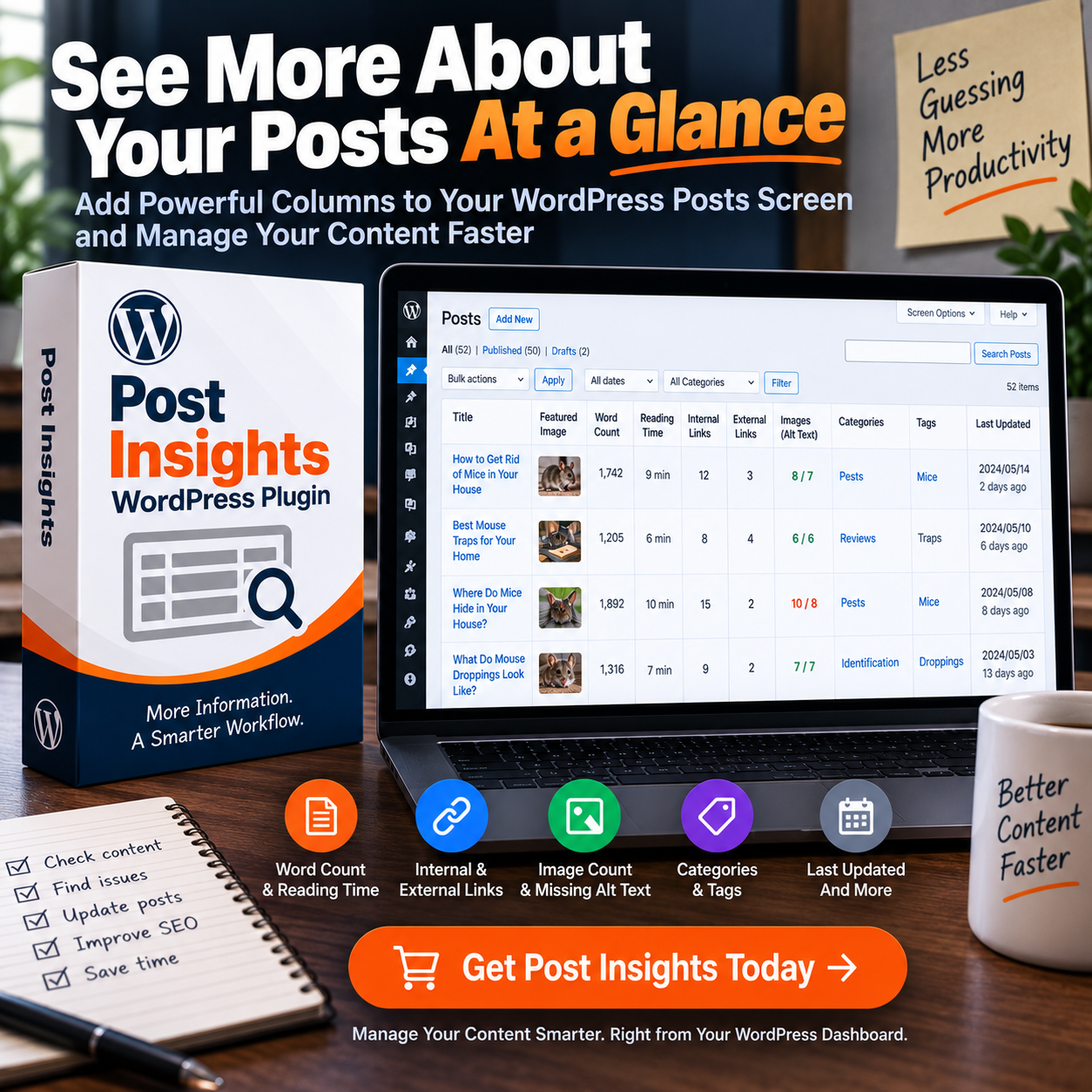
WordPress’s regular Posts screen is useful, but once you have a lot of content, it does not always show the information you wish you could see at a glance.
You may want to compare which posts are thin, which ones have no featured image, which articles are missing a meta description, which ones have not been updated in a long time, or which pages have too little structure for the kind of job they are supposed to do.
That is where Post Insights for WordPress comes in.
It adds useful post-level information to your WordPress content-management view so you can make better decisions without opening posts one by one just to inspect basic details.
Why this kind of plugin saves real time
Most content maintenance is not hard because any single fix is difficult. It is hard because you have to find the problem first.
A site owner can spend hours clicking through old posts, checking whether they have a featured image, looking at dates, comparing categories, or trying to remember which pages need attention. The more content you have, the more time gets wasted just locating the work.
Post Insights is about making the content library easier to see. It gives you a clearer way to sort, scan, and prioritize the pages that deserve attention.
That can be helpful before a content refresh, before an internal-linking project, or when you want to improve the quality of your existing site instead of only publishing new articles.
A website gets stronger when you can see the library clearly enough to make good decisions.
Category Compass AI for WordPress
Categories are one of those things that seem unimportant when a site is small and become a headache when it is not.
A new blogger may start with three or four broad categories and assign them quickly just to get the post published. A few years later, the site has hundreds of articles. Some are sitting in the wrong category. Some have no useful category at all. Newer, more specific categories exist, but older articles were never moved into them. Readers have a harder time browsing, and good content gets buried inside a vague archive page.
The Category Compass AI WordPress plugin helps you work through that problem without opening and reviewing every post one at a time.
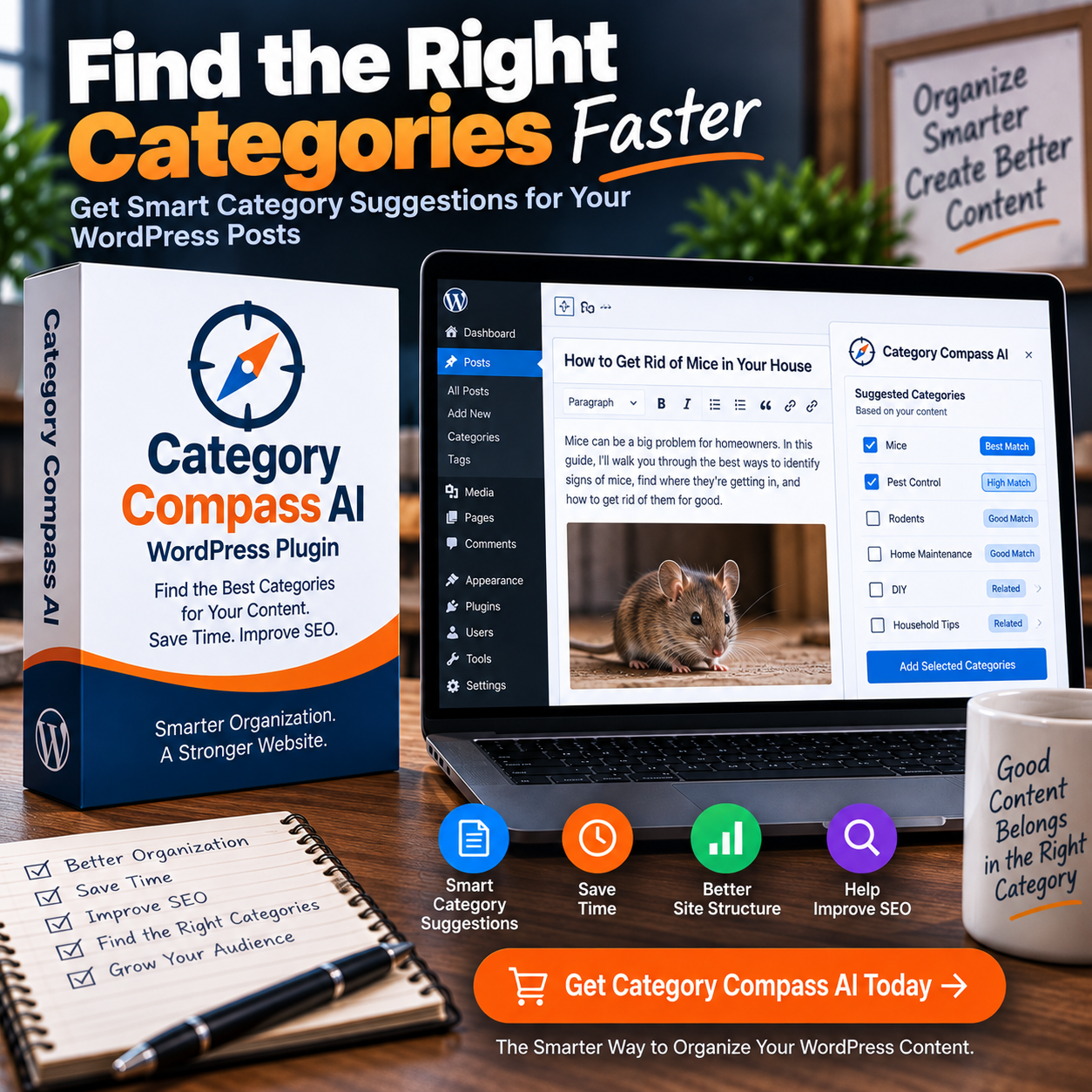
It scans published posts, identifies likely missing category assignments, and puts organized recommendations in a review area for you to approve or reject. If it sees a real topic that may deserve its own category, it can also prepare a proposed category title, description, excerpt, SEO title, meta description, and a list of related posts for your review.
That is a much smarter starting point than randomly creating categories because a keyword sounds good.
Why categories still matter
Categories are not a shortcut to rankings. I would never promise that.
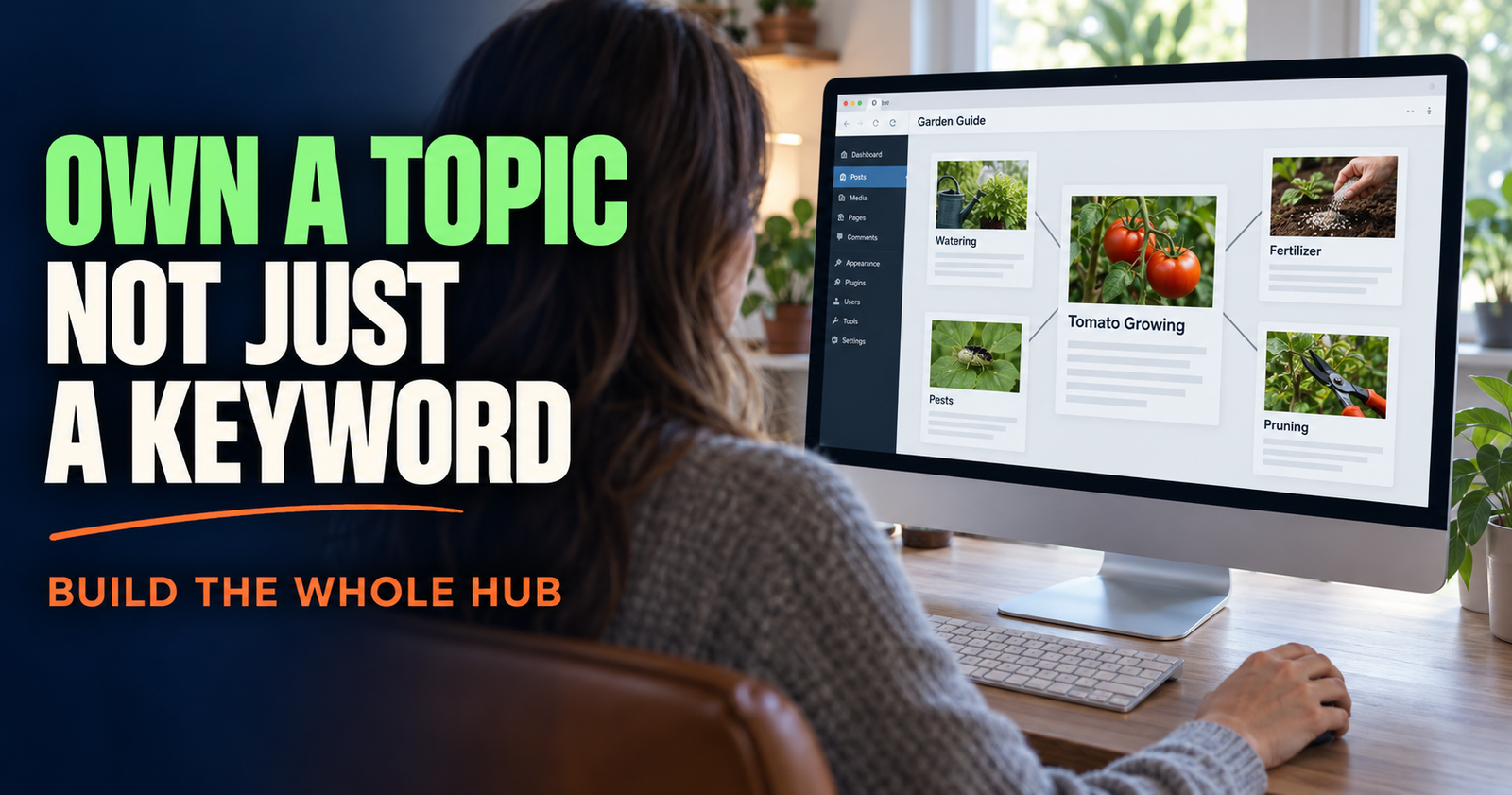
But they do help a real website make more sense. They give readers an easier way to browse. They make it clearer which articles belong together. They can support stronger topic hubs and help you see when a cluster has grown enough to deserve its own section of the site. The broader principles behind stronger topic hubs explain why those connected sections should serve one clear audience.
A good category should mean something to the reader. “SEO Basics,” “Google Search Console,” and “Internal Linking” tell a visitor what kind of help they will find. A category called “Tips,” “Other,” or “Blog” does not do much of anything.
The problem is that maintaining those categories gets harder as the site grows. That is the job Category Compass AI is meant to reduce.
The human review part matters here too
A plugin can make a sensible category recommendation, but it cannot fully understand your publishing strategy on its own.
Maybe an article could fit two categories, but you intentionally want it in one. Maybe a new topic looks large enough to become a category but you know it is only a one-off post. Maybe an older article needs a rewrite before it belongs in a more specific section.
That is why Category Compass AI presents recommendations instead of automatically reorganizing the entire site. You make the final call.
It uses your OpenAI API key and includes limits to help you control usage. It is built for reducing the boring research and sorting work, not removing your editorial judgment.
WordPress Category Buttons Pro
A category archive can be useful, but many WordPress themes make category navigation feel like an afterthought.
Readers may see a small text list in a sidebar, an archive page with no real introduction, or nothing at all that helps them understand the sections of your site. That becomes a missed opportunity when you have useful content organized into clear subject areas.
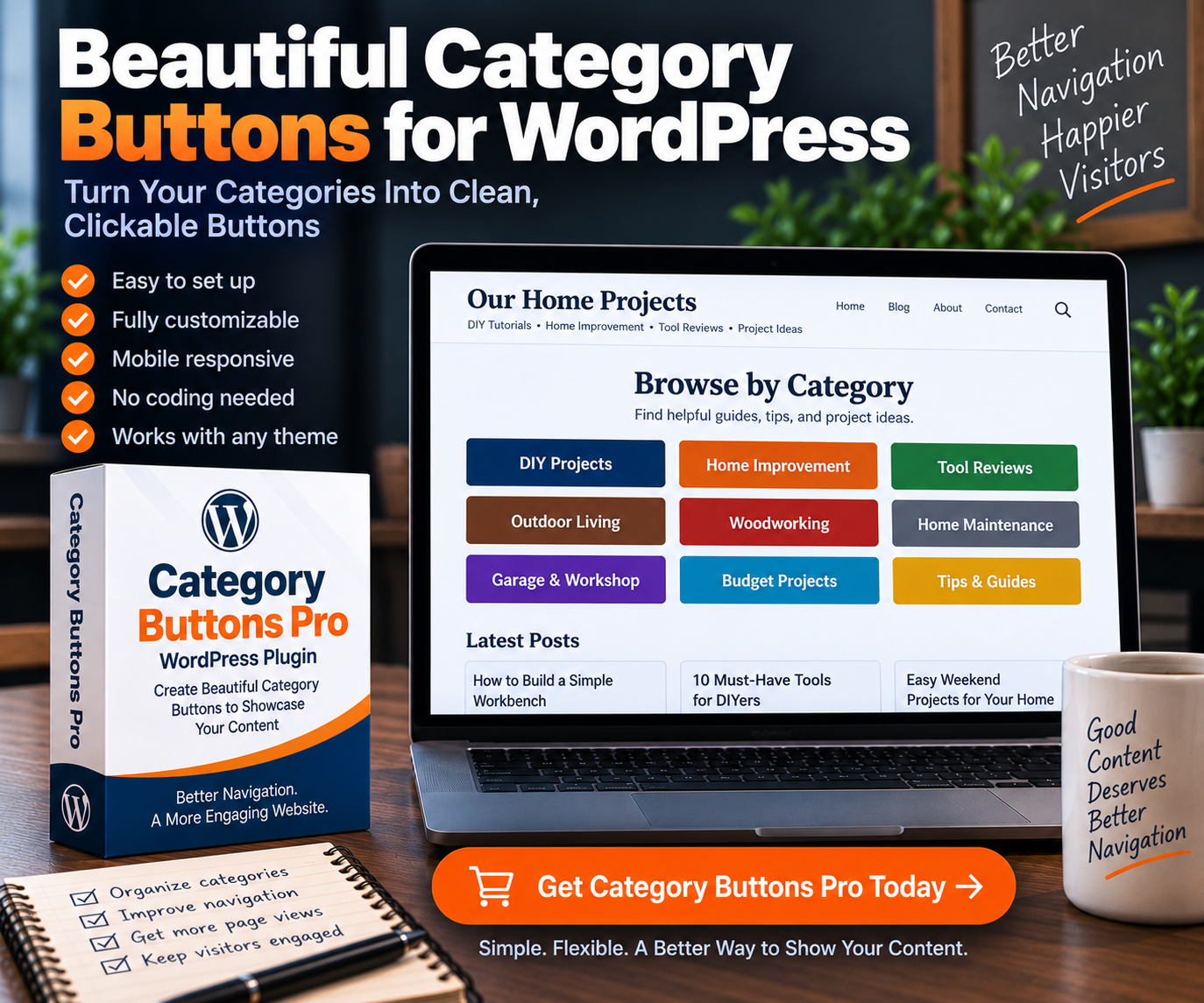
The WordPress Category Buttons Pro plugin creates responsive category-button grids you can place on a page or post using a shortcode or block.
This is one of those simple tools that can make a site feel much more organized without turning the page into a complicated design project.
Where I would use it
A browse page is the obvious place. Instead of making visitors hunt through a menu, you can show clear buttons that lead to the subjects they care about.
It can also work well on a main resource page, at the end of a broad guide, or inside a category hub where somebody needs an easy way to explore adjacent topics.
For Make It Found, a reader might arrive because they need help with beginner SEO. A clean category grid could help them move toward Website and Blog SEO, Small Business SEO, YouTube SEO, Etsy SEO, or tools and resources without getting lost.
That is not just a design improvement. It is a reader-path improvement.
Why it is better than manually building a grid every time
You can absolutely make category buttons by hand with a page builder or custom blocks. The trouble is keeping them current.
New category? You need to remember to edit the page. Category renamed? More manual work. Styling changes? You may have to adjust every button or rebuild the layout.
Category Buttons Pro pulls from your WordPress categories and gives you one controllable way to display them. It is lightweight, responsive, customizable, and designed to fit into a normal WordPress setup without needing a giant page-builder project.
For a site with many clear topic areas, that makes browsing easier for readers and maintenance easier for you.


Revenue Gap AI for WordPress
A lot of affiliate sites make the same mistake: they assume more new articles are always the answer.
Sometimes new content is the right move. But many sites already have published articles receiving traffic, earning impressions, or helping readers, yet they are missing a useful product recommendation where one would genuinely make sense.
Those are not pages that need a random affiliate link pasted into the middle. They need a better section that solves a real next problem for the reader.
The Revenue Gap AI WordPress plugin helps find those opportunities inside your existing content.
It analyzes published articles and identifies posts where a thoughtful product section could help the reader. Once you choose the actual product and provide verified details, it prepares a tailored new section as a WordPress revision for your approval.
Nothing is automatically published.

Why that is a much better affiliate approach
Affiliate content works best when the product solves a real problem the reader already has.
If somebody searches how to get rid of a specific pest, a product recommendation may be helpful after you have explained the situation honestly. If somebody searches a health symptom, throwing in an unrelated affiliate product may be inappropriate and hurt trust. If a reader needs a comparison, the product section should help them decide, not simply pressure them to click.
That judgment is what separates useful monetization from a site that feels like it is trying to sell something on every page.
Revenue Gap AI helps uncover pages where a recommendation might genuinely belong, but it leaves the final decision with you. You select the product. You review the proposed section. You can edit it, reject it, or publish it only when it fits the article and your audience.
Who this is for
This is a strong fit for affiliate marketers, review sites, bloggers, publishers, and content creators who already have a library of articles but know they have probably missed revenue opportunities over time.
It is also useful for someone who does not want to write new content just to chase another product keyword. Sometimes the better move is improving an article that already serves readers and already has some visibility.
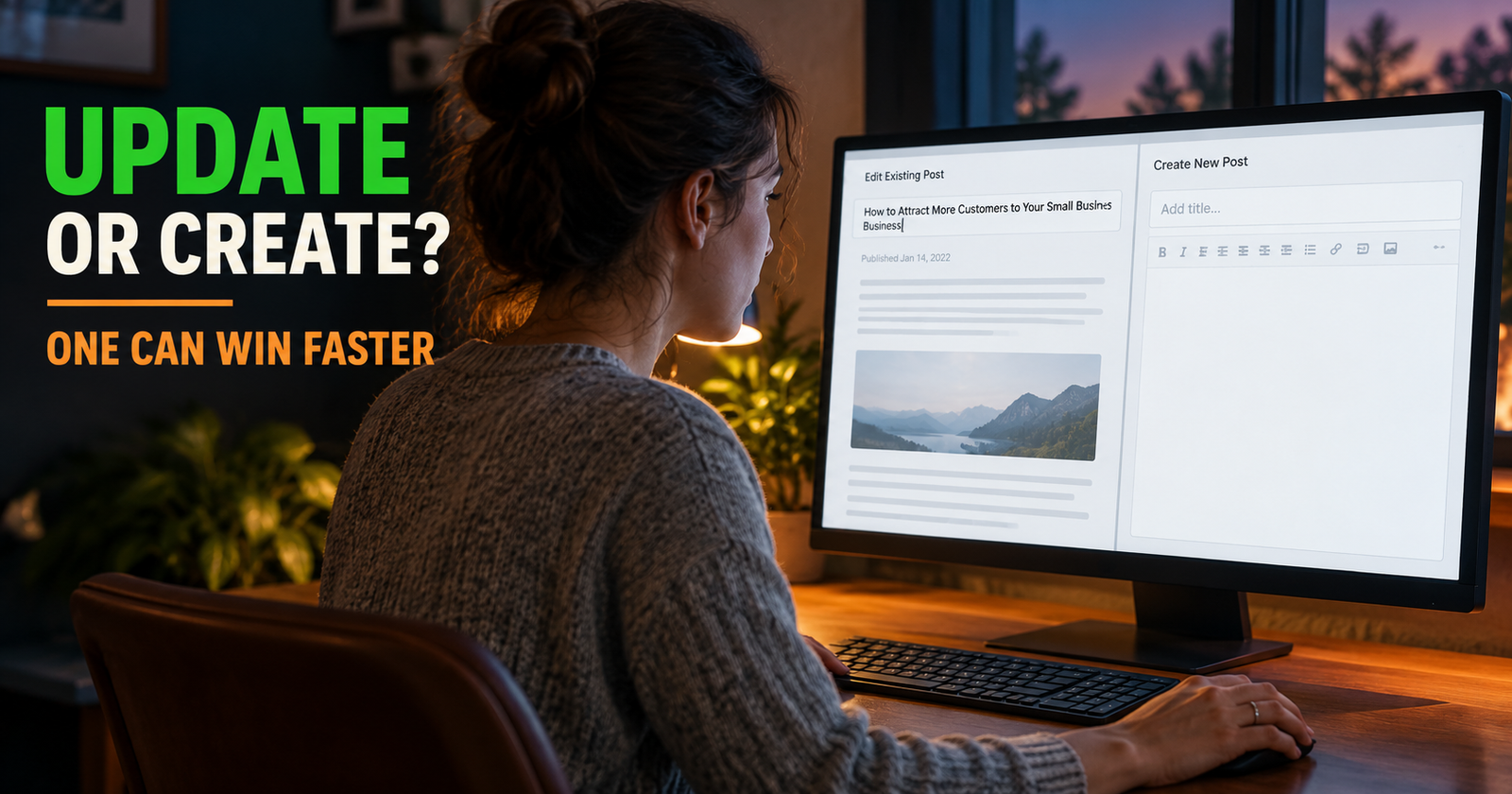
That is the same basic principle behind deciding whether to update an old post or write a new one. Do not treat existing content like a graveyard. Some of your best opportunities may already be on the site.
What it does not do
Revenue Gap AI does not create an affiliate account for you. It does not choose products you have not verified. It does not guarantee commissions. And it should not be used to add sales sections where they do not belong.
It is a discovery and drafting tool for a job that is normally slow: finding the right article, identifying a genuine reader need, and creating a section that you can review before it ever reaches the public.
That is a far more responsible way to approach affiliate content.
Product CTA Pro for WordPress
Affiliate links are easy to add. Making product recommendations look consistent across a large site is much harder.
A blogger may have the same product recommended in 20, 50, or 200 posts. Maybe the old articles use different image sizes. Maybe some only have plain text links. Maybe the exact affiliate URL has changed. Maybe the product is useful but gets overlooked because it is buried inside a paragraph.
The Product CTA Pro for WordPress is designed to make that process more consistent.
You add a product to a reusable library once, assign its featured image, and connect it to the relevant Amazon affiliate link or supported external product URL. When the plugin sees that matching link inside your content, it can automatically show a clickable product image beside the paragraph.

Why that matters on a real affiliate site
I do not think every affiliate link needs a giant product graphic. That would make an article exhausting to read.
But when a product is important enough to recommend, a consistent visual call to action can help the reader notice it. It also lets you present product recommendations in a cleaner, more professional way than a random text link stuffed into a sentence.
The real time savings appear when the same product is mentioned across many articles. Instead of editing every post one by one, you can manage the product in one place.
Product CTA Pro preserves the exact affiliate URL and its tracking parameters. It supports Amazon short links, full Amazon URLs, ASIN links, and supported outside product links. It also gives you placement choices, image controls, mobile visibility settings, exclusions, duplicate prevention, and limits on how many CTAs can appear in an article.
A good use case
Imagine you run a niche website with several related articles about one recurring problem. You recommend the same trusted product in each article because it genuinely fits the reader’s situation.
Without a system, you may have to manually upload the image, style it, insert it, remember the right link, and repeat the process every time. Then, when the product changes, you have to track down every old recommendation.
Product CTA Pro gives you a reusable setup instead.
That does not replace the need for honest product advice. You still need to explain why the product is relevant, who it is for, and when a reader should not buy it. The plugin simply removes the repetitive formatting work after you have made that recommendation. Those principles are explained in the rules for relevant product recommendations.
Broken Link Cleanup Pro for WordPress
Broken links are more than a technical annoyance.
A dead link can leave behind an old recommendation, an unfinished sentence, a resource that no longer exists, or a product the reader cannot buy anymore. On a large site, those problems multiply quietly. You may not notice until a reader clicks something that leads nowhere.
The Broken Link Cleanup Pro for WordPress does more than list bad URLs. It helps you see the actual paragraph where the link lives and decide what should happen next.
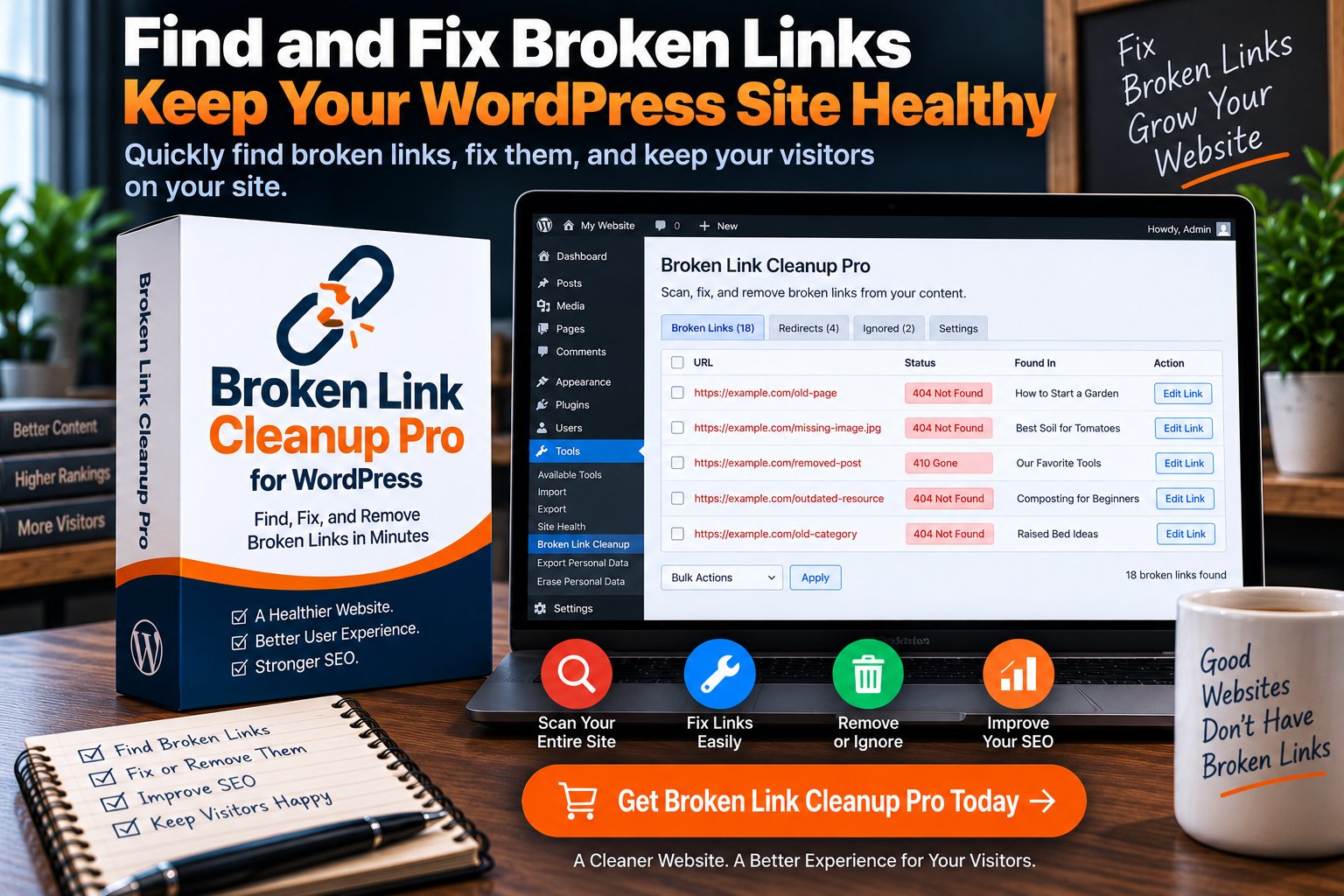
You can remove only the hyperlink, delete a sentence, replace the destination, rewrite the paragraph, or update every use of the same old URL across the site. Every change stays subject to your approval.
That context is the feature that matters most.
Why a basic broken-link report is not always enough
A normal broken-link report may tell you that a URL is dead. Useful, but incomplete.
What if the sentence still makes sense without the link? What if the entire recommendation is outdated? What if a product has been replaced and you need to update the link, product name, and related CTA image? What if the destination now redirects somewhere that is technically live but no longer useful for your reader?
Those are editorial decisions, not just technical ones.
Broken Link Cleanup Pro is built to help you make those decisions where the content actually appears. It can identify 404s, redirects, soft 404s, blocked links, and unverified links, then give you options for cleaning up the surrounding article instead of treating every broken link exactly the same.
Particularly useful for affiliate content
Older Amazon recommendations are a good example.
Products go out of stock, get discontinued, change URLs, or become poor recommendations over time. If you use product CTAs across the site, fixing an old product link may mean more than replacing one destination.
Broken Link Cleanup Pro can work with Amazon API access to help find products that are no longer for sale, replace Amazon links sitewide, and update connected Product CTA information as part of the cleanup process.
That can save a huge amount of tedious maintenance on an older affiliate site.
It also gives you a more responsible way to maintain trust. If you recommend something to a reader, the least you can do is make sure the recommendation still leads somewhere useful.
YouTube Embed Checker for WordPress
YouTube embeds are easy to add and easy to forget about.
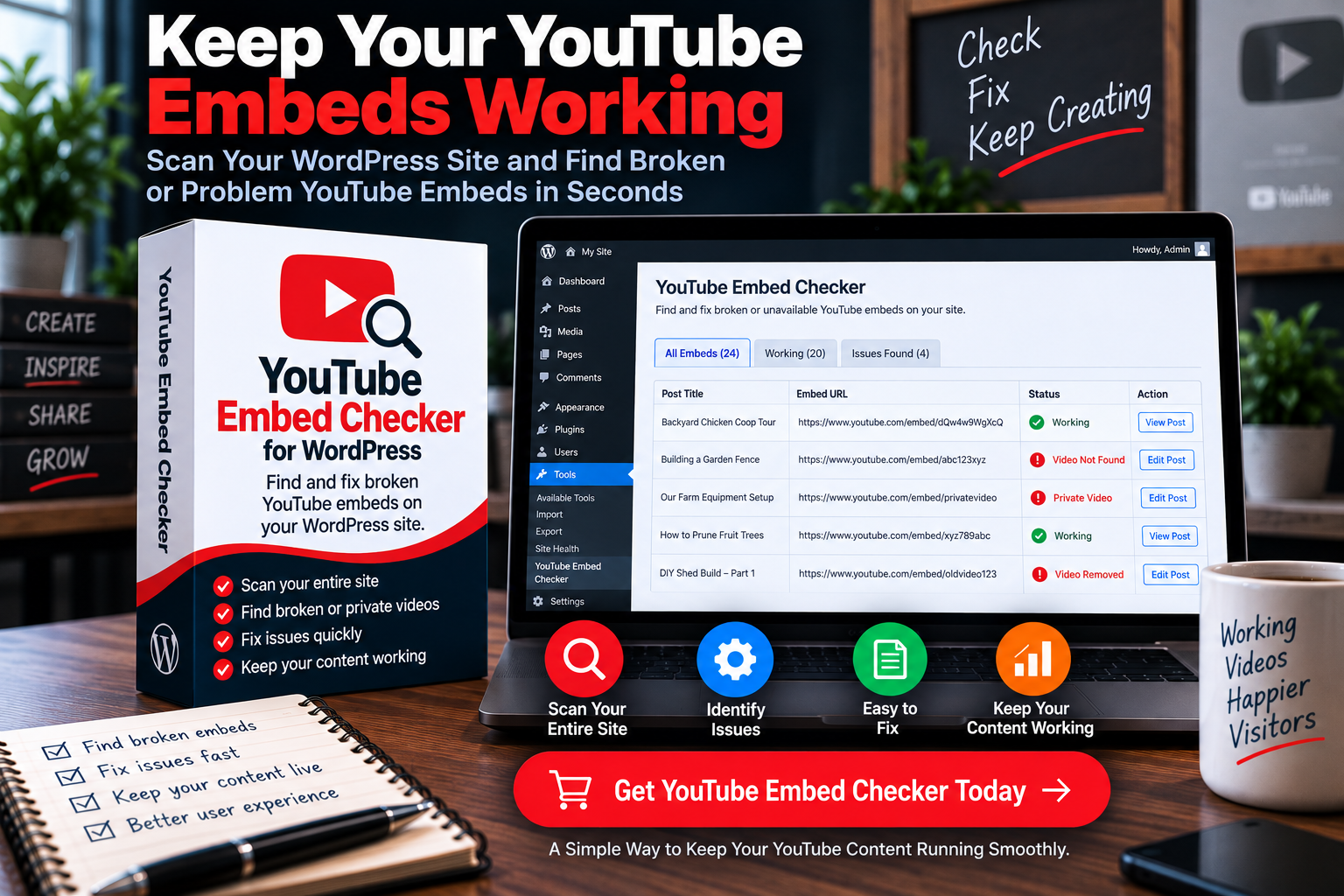
You publish a helpful video inside an article, move on, and assume it will keep working forever. But videos can be deleted, made private, restricted, removed from a channel, or simply stop displaying the way they should. On a site with dozens or hundreds of embeds, manually checking each one is not realistic.
The YouTube Embed Checker for WordPress is for website owners who need a practical way to review YouTube embeds across their content instead of discovering broken video sections after a reader does.
Why broken videos are a bigger problem than they look
A failed video embed can make an article feel unfinished. It can leave an empty space in the middle of a page, interrupt the reader, and make the rest of the content look neglected even if the written information is still good.
This matters most on tutorial sites, product-review websites, recipe blogs, training libraries, and any site where videos are part of the actual answer.
If the video is optional, a broken embed is still frustrating. If the video explains an important step, it can leave the reader without the information they came for.
I like maintenance tools that help uncover this kind of quiet problem before it becomes a pattern across the site. The job is not glamorous, but it protects the reader experience you worked to build.
Who should use it
This is a practical tool for anyone who has embedded YouTube content throughout WordPress posts or pages.
It is especially useful if you have been publishing for years, use a mix of your own videos and outside videos, or have imported content from older sites. YouTube content changes over time. A quick way to check the health of embeds can save you from opening article after article and hoping everything still works.
Broken Image Checker for WordPress
Images can break for all kinds of boring reasons.
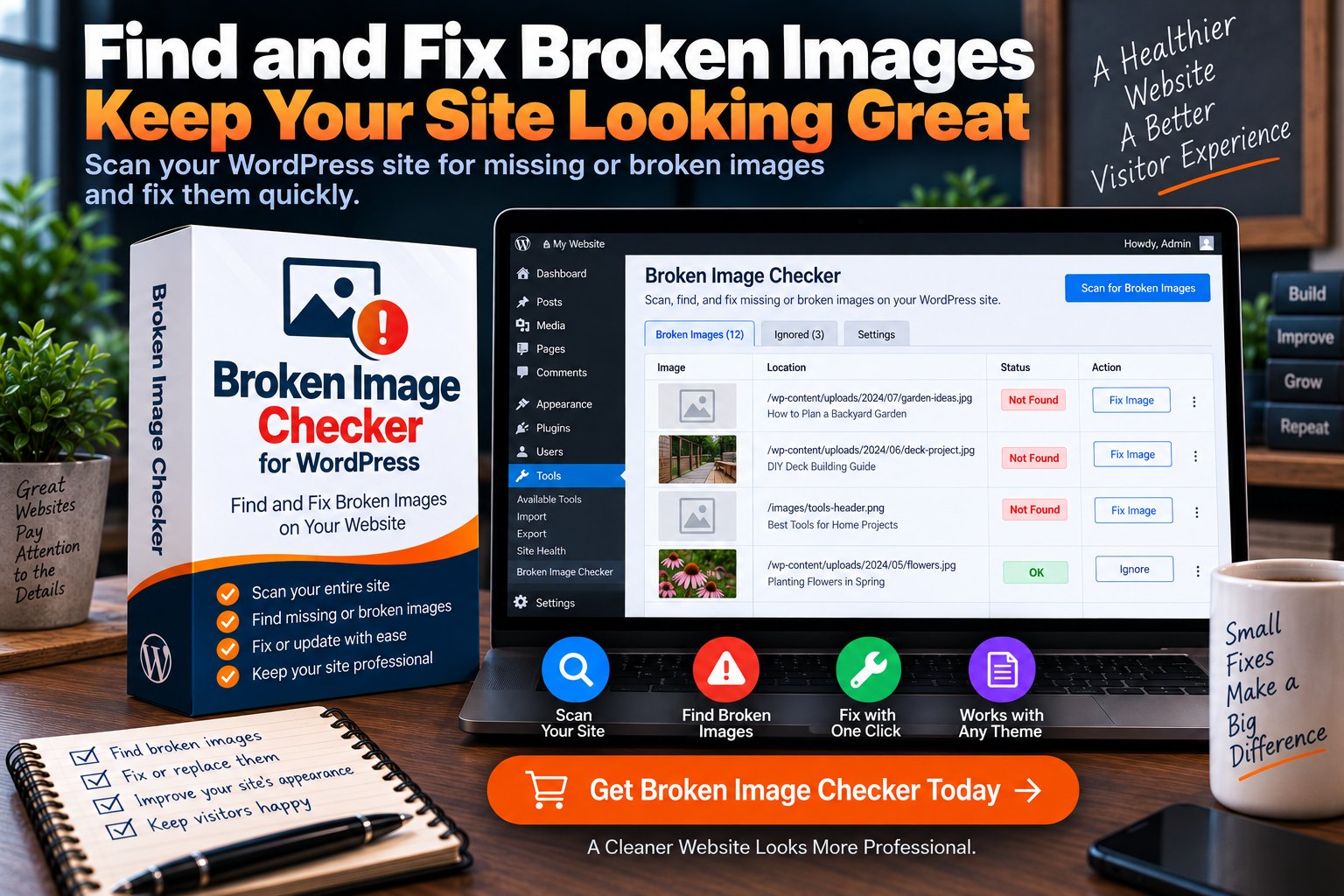
A file gets deleted. An image was moved. A media-library URL changed. A third-party image no longer loads. A migration leaves behind old image paths. An article still looks fine in the editor, but the reader sees an empty box, a missing-image icon, or a page that takes too long to load because it keeps trying to fetch something that is gone.
The Broken Image Checker Plugin for WordPress is designed to help you find image issues across your site before readers start running into them.
Why image maintenance matters for trust
A broken image may not always be an SEO emergency, but it can hurt the page in a very human way.
Someone lands on an identification guide, a product review, a recipe, or a how-to article expecting a visual reference. Instead, the image is missing. They may still read the page, but the article immediately feels less cared for.
Images often carry more responsibility than website owners realize. They show a product, demonstrate a step, help somebody identify a problem, break up a long article, or give a visitor confidence that the page is not stale.
That is why I would rather find image issues in one organized workflow than wait for an email from a reader telling me part of an article is broken.
A good fit for established sites
A small site with 10 posts can manually inspect its images. A site with years of content cannot realistically do that on a regular basis.
This kind of tool is useful for bloggers, publishers, affiliate websites, agencies, and small businesses that have built up a large media library over time. It gives you a better chance of finding the quiet failures that happen as content is updated, images are replaced, and sites evolve.
Safe Emoji Remover for WordPress
Emojis are not always bad. They can fit a brand, a social post, or a casual email.
But a lot of WordPress sites use them accidentally rather than intentionally. They arrive through imported content, multiple writers, copied text, or AI-assisted drafts. Before long, articles have random symbols in headings, titles, calls to action, and paragraphs. On some themes, WordPress emoji conversion can even create oversized image-style emojis that look strange on mobile.
The Safe Emoji Remover for WordPress removes emojis from selected WordPress posts and pages while protecting the rest of the page structure.

It is designed to leave links, images, headings, Gutenberg blocks, HTML, CSS classes, shortcodes, and formatting in place. It can clean existing content in batches and continue removing emojis when new or updated content is published.
Why a focused cleanup tool makes sense
You could try a giant search-and-replace project. That sounds simple until you remember that a website contains links, image markup, buttons, special characters, blocks, code, and formatting that you do not want to damage.
A good cleanup tool should have a narrow job. This one removes the thing you do not want while leaving the important parts alone.
I would use it on a site that wants a clean editorial style, has imported a lot of content, or is trying to make its writing feel more professional and consistent. It is also helpful when decorative emojis no longer match the direction of the brand.
It is not about pretending emojis ruin rankings
Removing emojis is not a magic ranking tactic. It is a presentation and maintenance decision.
If your brand uses emojis well and your readers like them, there is no reason to erase them out of fear. But if they are scattered through articles without a real purpose, cleaning them up can make the site feel calmer and more consistent.
That is the kind of decision I want a plugin to make easier.
Foolproof Admin Bar Hider for WordPress
The WordPress admin bar is useful when you are working on your site. It is less useful when a logged-in customer, member, student, subscriber, or client sees it across the top of the public website.
For some sites, it is harmless. For others, it makes the experience feel unfinished or reminds the visitor they are looking at a WordPress backend, even though they are supposed to be using a polished front-end site.
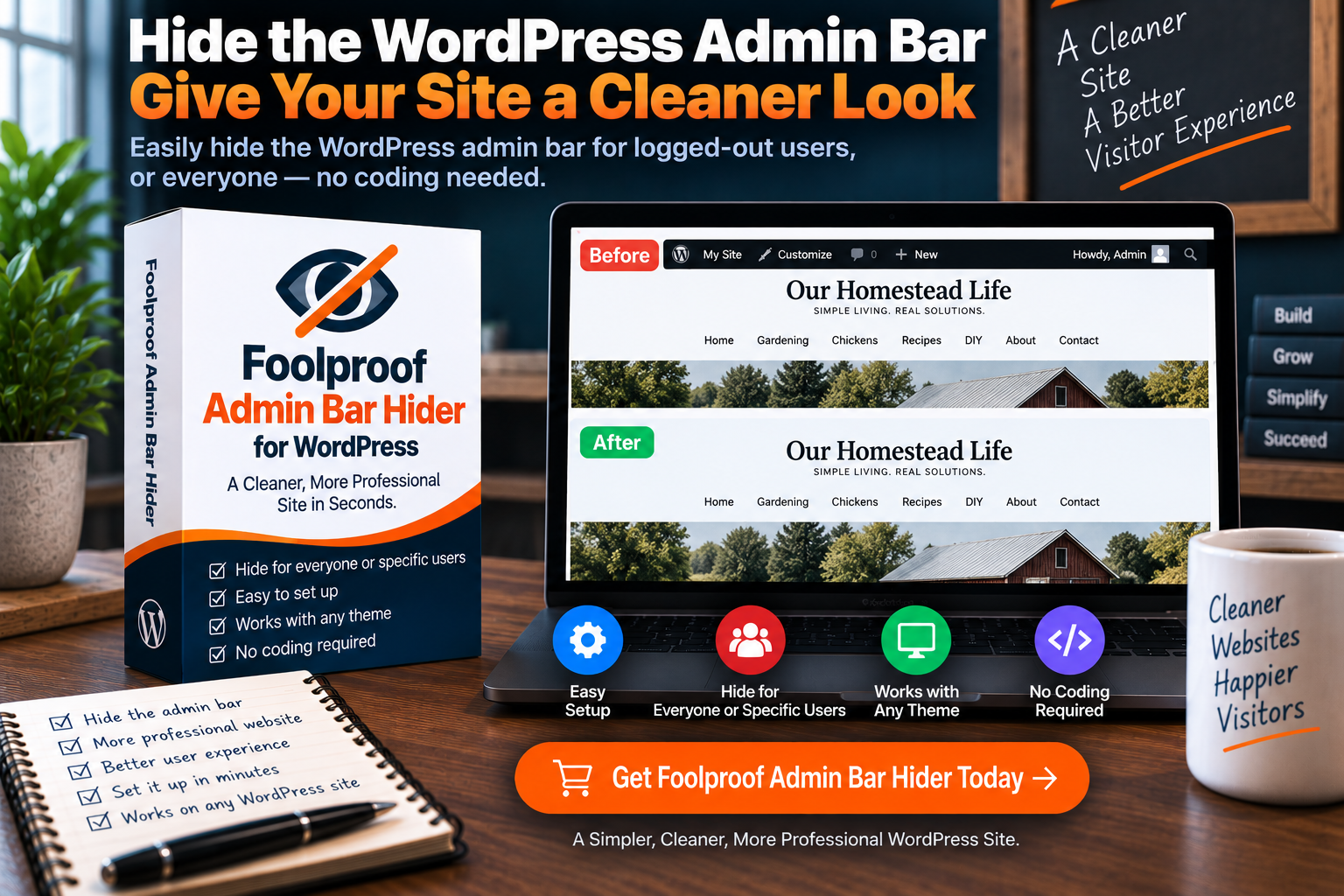
The Foolproof Admin Bar Hider for WordPress hides the admin bar for the users you choose while leaving the actual WordPress dashboard alone.
The important detail is control
You may want the bar hidden from everybody except administrators. You may want to hide it only from customers or subscribers. You may have custom roles on a membership, course, community, or client portal website.
A one-size-fits-all setting is not enough for that.
This plugin lets you control which users see the toolbar without changing WordPress core files. It can also correct the blank space some themes leave behind when the admin bar is hidden.
That may sound like a small thing, but empty space at the top of a site is the kind of detail that makes a polished website suddenly look broken.
Who it is for
This tool makes the most sense for WooCommerce stores, membership sites, online-course platforms, customer portals, community websites, and client sites where logged-in visitors should have a clean front-end experience.
It is also a good reminder that not every useful WordPress plugin is about rankings or traffic. Some are about making the site feel like it belongs to the business instead of the platform underneath it.
Separator Shield for WordPress
Horizontal divider lines have a way of creeping into a site.
They can come from AI-generated drafts, imported articles, copied content, old templates, or writers who use them as visual breaks without realizing that the theme already provides enough structure through headings and spacing.
One divider line is not a crisis. Hundreds of unnecessary divider lines spread across a large site can make the content feel cluttered, inconsistent, and dated.
The Separator Shield WordPress plugin removes supported Gutenberg Separator blocks and standard HTML divider lines from selected content while leaving the rest of the article alone.
It can work on newly saved content and provide a bulk cleanup process for existing posts.

Why this is useful for content-heavy sites
Manually removing a few divider lines is easy. Manually opening 500 old articles to find and remove them is not.
Separator Shield has a deliberately narrow purpose. It does not rewrite your article. It does not remove headings, lists, images, links, tables, buttons, or the rest of your formatting. It targets the unwanted divider elements and leaves the actual content intact.
That is exactly how a maintenance plugin should work.
A good fit for imported and AI-assisted content
When content comes from different writers, different systems, and different time periods, visual consistency often gets messy.
Maybe some articles use divider lines before every H2. Maybe old imported content has <hr> elements scattered through it. Maybe drafts generated from a certain workflow bring in separators that do not match your site design.
A quick cleanup tool gives you a way to fix the pattern without spending days doing the same tiny edit over and over.
How I would choose the right plugin instead of buying everything
The goal is not to install all 15 tools just because they exist.
Start with the one repeated problem that is costing you the most time or making the site worse for readers. Fix that process. Then decide what deserves attention next.
Here is how I would think through it:
- Choose Internal Link Reviewer if you have a growing content library and know you are missing useful links between posts.
- Choose Smart Related Content Inserter if readers need clearer visual paths to related articles or product pages.
- Choose Auto Linked Featured Images if your existing internal links are useful but easy to overlook.
- Choose SearchLift AI if you have Search Console data and need help identifying which pages already have realistic growth potential.
- Choose Post Insights if your WordPress content library is hard to scan, sort, and prioritize.
- Choose Category Compass AI if your old articles are poorly organized or important categories are missing content.
- Choose WordPress Category Buttons Pro if visitors need a better way to browse your categories from key pages.
- Choose Revenue Gap AI if you have useful existing articles that may be missing relevant affiliate opportunities.
- Choose Product CTA Pro if you repeatedly recommend the same products and want consistent, reusable visual calls to action.
- Choose Broken Link Cleanup Pro if older articles have dead links, outdated resources, redirects, or retired affiliate products.
- Choose YouTube Embed Checker if embedded videos are an important part of your content.
- Choose Broken Image Checker if your site has years of image-heavy posts and you need a better way to find missing visuals.
- Choose Safe Emoji Remover if stray emojis are hurting the consistency of your content.
- Choose Foolproof Admin Bar Hider if logged-in visitors should see a cleaner, more professional front-end experience.
- Choose Separator Shield if unnecessary divider lines are cluttering imported, older, or AI-assisted content.
The best first plugin is the one attached to a real problem you already have. Do not buy a tool because you hope it will create a problem worth solving.
The useful combinations for different kinds of websites
Some plugins naturally work well together because they support the same workflow.
A growing informational website may pair Internal Link Reviewer with Smart Related Content Inserter and Auto Linked Featured Images. One tool helps find useful internal-link opportunities. One creates visible related-content paths. One makes important text links more noticeable.
An affiliate site may pair Revenue Gap AI, Product CTA Pro, and Broken Link Cleanup Pro. One finds content where a product recommendation could genuinely help. One displays reusable product calls to action. One helps maintain old product links and related content when products change.
A content-heavy blog may pair Post Insights, Category Compass AI, and WordPress Category Buttons Pro. One helps you see the content library more clearly. One helps organize it. One gives readers a more useful way to browse it.
A site cleaning up years of older content may pair Broken Image Checker, YouTube Embed Checker, Safe Emoji Remover, Separator Shield, and Broken Link Cleanup Pro. That is a maintenance stack, not a traffic gimmick. It helps the site stop looking neglected.
The point is to build a workflow that solves your actual bottleneck.
What these plugins will not do for you
A good plugin can save time, reveal opportunities, improve consistency, or protect the reader experience. It cannot replace the parts of website ownership that require real judgment.
It cannot make an unhelpful article satisfying. It cannot choose your site’s purpose. It cannot guarantee rankings, clicks, affiliate income, or sales. It cannot tell you which topic is right for your exact audience without you thinking about the people you want to help.
The best results happen when you use tools to remove the mechanical work and keep your own attention on the work only you can do: choosing useful topics, giving honest advice, reviewing changes, and creating a site readers trust.
That is why approval workflows matter so much in the AI-assisted tools in this guide. Let the tool find the opportunity. Let the human decide whether it belongs.
Frequently asked questions
Do I need all of these WordPress plugins?
No. Most website owners should start with one or two tools that solve a repeated problem. Installing too many plugins without a clear purpose can make WordPress harder to manage. Choose based on the work your site actually needs.
Are AI WordPress plugins safe to use?
They can be useful when they keep you in control. The AI-assisted plugins in this guide are designed to prepare recommendations or revisions for review, not publish changes without approval. You should still read every recommendation and make sure it fits your site and audience.
Will these plugins make my site rank higher in Google?
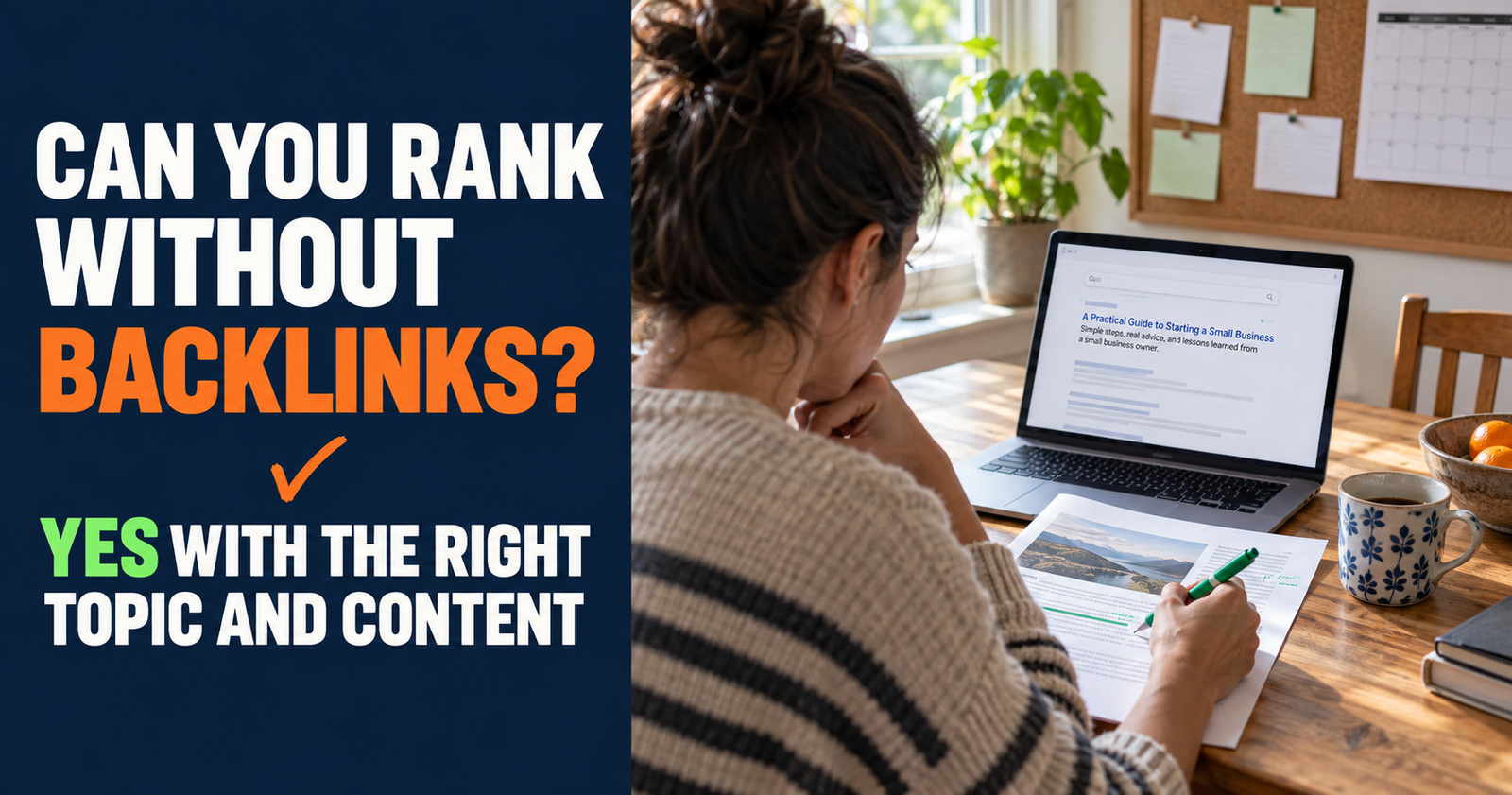
No plugin can guarantee rankings. Some can support stronger SEO work by helping you improve internal linking, maintain content, understand Search Console data, organize categories, and fix site issues. The article itself still needs to answer the reader’s question well. That principle is also explained in No plugin can guarantee rankings, which separates useful SEO work from the belief that backlinks or tools can guarantee rankings.
Which plugin should a new blogger start with?
It depends on the problem. A brand-new site may not need a maintenance plugin yet. If you have enough published content to connect, Internal Link Reviewer can be useful. If you have Search Console data and pages with impressions, SearchLift AI may be a better fit. Start with the job that is already becoming difficult to do manually.
Are these plugins only for affiliate marketers?
No. Several are useful for affiliate publishers, but the collection also includes tools for site organization, category navigation, content cleanup, broken media, admin-bar control, and internal reader paths. Bloggers, publishers, small businesses, agencies, and membership sites can all find useful fits here.
Should I review old content before buying new SEO tools?
Usually, yes. Older content often contains missed internal links, broken links, outdated recommendations, weak category assignments, or pages with existing ranking potential. Improving good work you already have can be more valuable than constantly publishing new posts.
Alden Whitaker writes practical, plain-English SEO guides for Make It Found that help small website owners make smart improvements without getting buried in agency jargon.